User/Permission Management
As teams grow, it becomes essential to clearly define who can perform which tasks. With KIOPS's permission management system, you can grant each team member only the permissions they need, strengthening security and preventing problems caused by mistakes.
Why Is Permission Management Important?
- Accidentally Deleting a Production Server: Without permission management, anyone can do it; with permission management, only Managers can.
- Sensitive Data Exposure: Without permission management, all employees can access it; with permission management, only authorized personnel can access it.
- Former Employee Accounts: Without permission management, you must manually find and deactivate them; with permission management, you can remove them immediately.
- Accountability Tracking in Audits: Without permission management, it is unclear; with permission management, you can clearly verify through audit logs.
Grant each user only the minimum permissions required to perform their work. Unnecessary permissions increase security risks.
Role System
KIOPS has three roles. Roles determine the management level you can exercise in the system, while individual feature access permissions are granted separately.
- PlatformAdmin: The highest-level role that manages the entire platform. Can view/manage all organizations and users, and can access operations-only screens such as DB Explorer and DB Monitoring.
- Manager: Manages the organization at the organization level — grants/revokes permissions, processes registration approvals, and manages organization-wide resources.
- Member: A general user who can use features only within the granted permission scope.
- A Manager can only change member roles within their own organization.
- A PlatformAdmin can change user roles in all organizations.
- You cannot change your own role.
Permission Categories
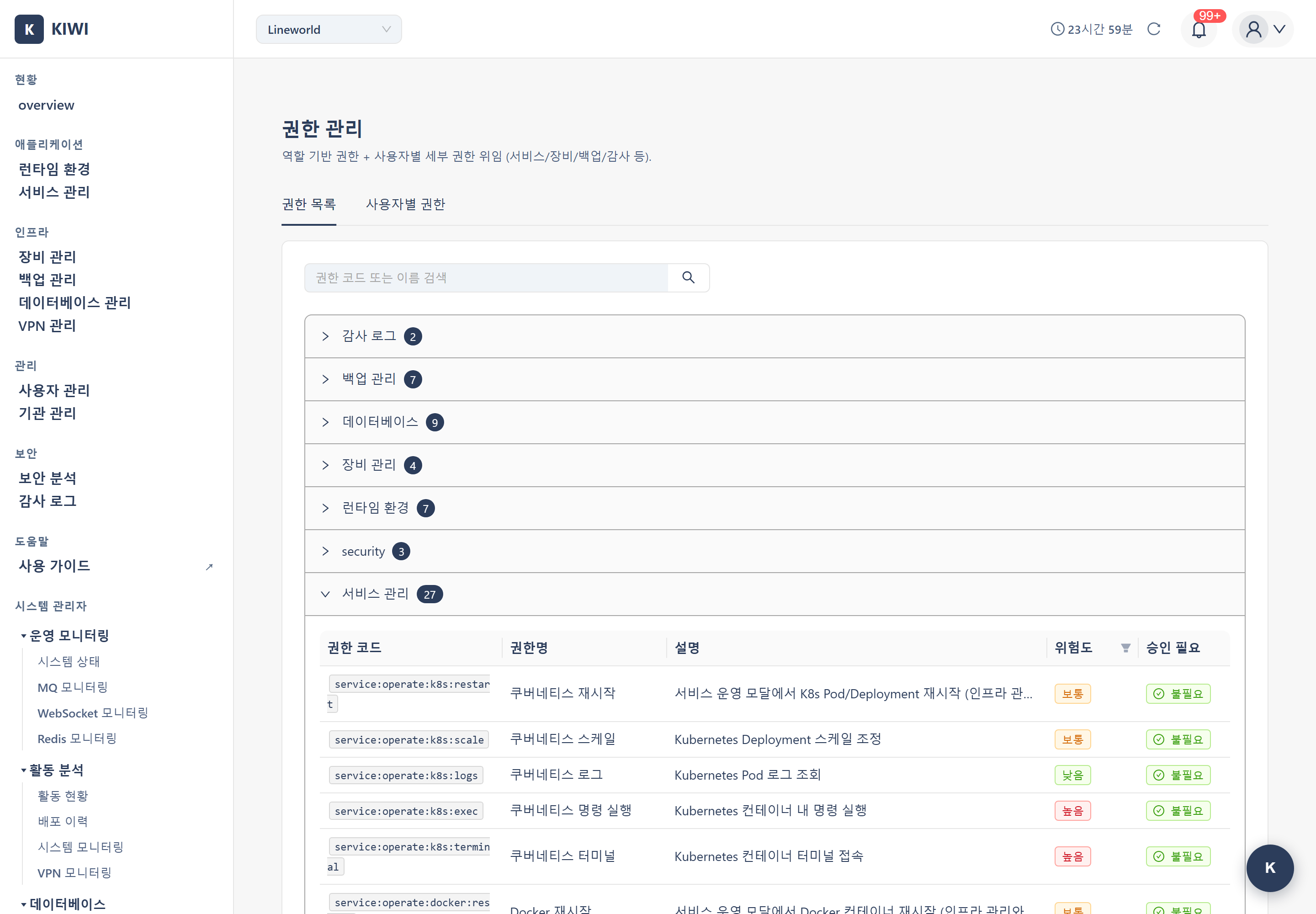
Separate from roles, there are 7 permission categories that grant access to each feature page. Managers can grant these individually to members.
- infra (Runtime): Access to the [Runtime Environments] page; manage K8s/Docker/Podman environments
- service: Access to the [Service Management] page; Git integration, build, deploy, and security scans
- backup: Access to the [Backup Management] page; backup/recovery and external storage management
- device: Access to the [Device Management] page; register/edit/delete servers and devices
- database (DB): Access to the [Database Management] page; DB connection, sync, and migration
- vpn (VPN): Access to the [VPN Management] page; VPN profile configuration, connection, and testing
- audit: Access to the [Audit Log] page; log viewing and export
- A role (PlatformAdmin/Manager/Member) determines "what management authority the user has in the system."
- The 7 permission categories determine "whether the user can access a specific feature page."
- A Manager can freely combine and grant the 7 permission categories to members within their organization.
Registration Approval Flow
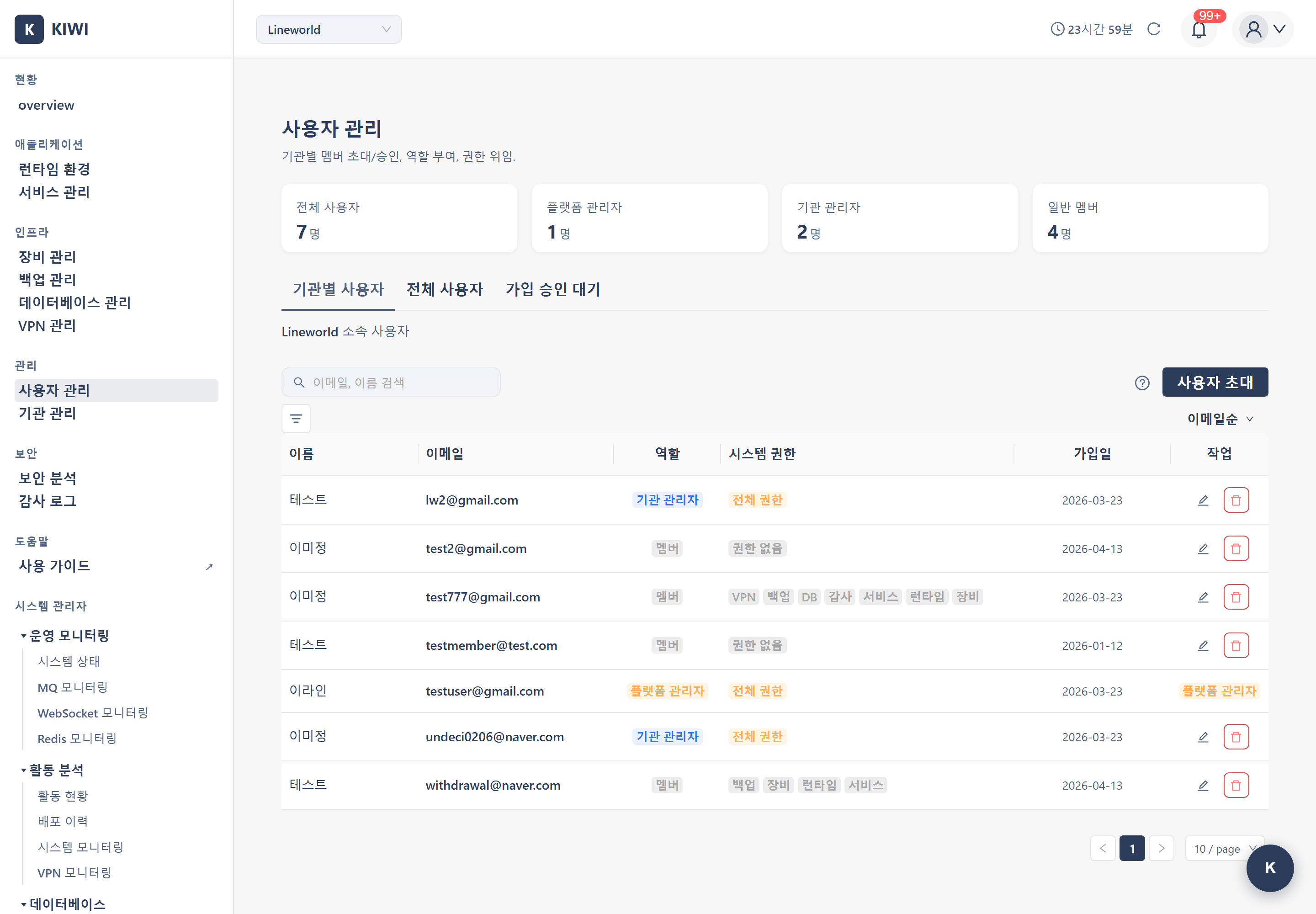
When a user signs up directly, they enter the organization's registration approval queue, and a Manager decides whether to approve or reject. This is processed on the Pending Approvals tab of the [User Management] page.
Approving a Registration Request
The flow for handling cases where a user has directly signed up.
Required Permission: Manager (own organization requests only) or PlatformAdmin (all requests)
Step 1: Navigate to the Pending Approvals Tab
On the [User Management] page, click the Pending Approvals tab. The pending count is displayed next to the tab name.
Step 2: Review the Request
Verify the requesting user's email/name/organization/request time. You can narrow results with the request period filter (7 days / 30 days / All).
Step 3: Approve or Reject
- Approve: Registers the user as a member of the organization.
- Reject: Rejects the request (the user can apply again).
Changing User Permissions
Required Permission: Manager (members of own organization) or PlatformAdmin
Step 1: Navigate to the Permission Management Page
Click [Permission Management] in the left menu.
Step 2: Select a User and Edit Permissions
Select the user whose permissions you want to change in the user list, and check the items you want to grant from the 7 permission categories (infra/service/backup/device/database/vpn/audit).
Step 3: Save
When you click Save, the changes are applied immediately and recorded in the audit log.
Changing a User's Role
Required Permission: Manager (own organization only) or PlatformAdmin
On the [User Management] page, click the Edit Role button on the target user's row and select the role to change to from PlatformAdmin / Manager / Member.
For system stability, you cannot change your own role directly. You must request it from another Manager or PlatformAdmin.
Managing Users by Organization
PlatformAdmins can view users across all organizations at once on the All Users tab of the [User Management] page. This tab is not shown to regular Managers, who only manage their own organization's members on the Users by Organization tab.
Creating/editing/deleting the organization itself is performed on the [Organization Management] page (PlatformAdmin only).
Removing a User
Required Permission: Manager (own organization) or PlatformAdmin
Step 1: Select a User
On the [User Management] page Users by Organization tab, click the Remove icon in the actions on the right side of the target user's row.
Step 2: Confirmation Modal
Review the impact described in the confirmation modal and proceed. The removed user is taken out of the organization, and their permissions are also revoked.
What Managers typically perform is removal from organization members. If you need to completely delete the user account itself, request it from a PlatformAdmin.
Updating My Profile and Password
For instructions on editing your own account information, refer to the [Profile] page documentation. You can handle name changes, password changes, and account deletion all in one place.
Frequently Asked Questions
I see an "Insufficient permissions" message
This means the currently granted permission categories do not include this feature. Request the required permission categories from your Manager.
Provide the following information to your Manager:
- The page/feature you are trying to access
- The work-related reason it is needed
- The required permission categories (which of infra/service/backup/device/database/vpn/audit)
I forgot my password
Use the Forgot Password feature on the login page, or request a password reset from a Manager / PlatformAdmin.