Metrics Server Installation
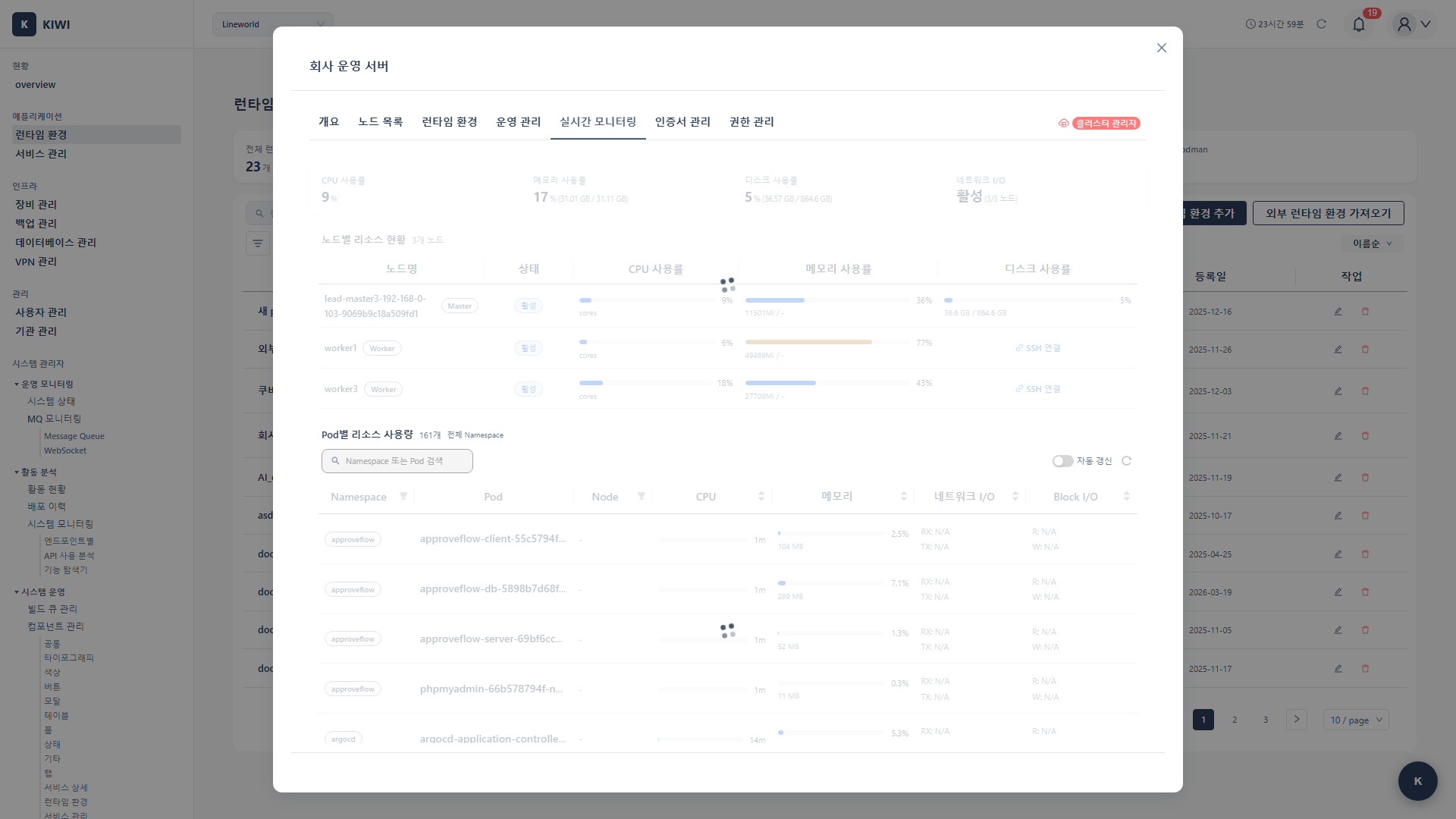
Want to use HPA (auto-scaling) or monitor Pod resource usage? Then you need to install the Metrics Server first.
Kubernetes doesn't track Pod CPU/memory usage by default. Installing Metrics Server collects this information and makes it available for HPA, dashboards, kubectl top commands, and more.
What is Metrics Server?
Metrics Server is an official Kubernetes component that collects and provides resource usage data for the cluster. Think of it as the "health checkup tool" for your cluster.
Key Features
Here are the core capabilities that Metrics Server provides.
-
Node Resource Monitoring: Collects CPU and memory usage of each node in the cluster in real-time. Use this to understand resource status per node for capacity planning.
-
Pod Resource Monitoring: Collects CPU and memory usage of each Pod. Analyze which applications are using the most resources.
-
HPA (Horizontal Pod Autoscaler) Support: HPA automatically adjusts the number of Pods based on data provided by Metrics Server. HPA does not work without Metrics Server.
-
kubectl top Command Support: Check resource usage directly from the terminal using
kubectl top nodesandkubectl top podscommands.
- When you want to view resource usage in the KIOPS dashboard
- When you want to use HPA (auto-scaling)
- When you need resource-based scheduling.
- When you want to set up operational monitoring.
Prerequisites
Check the following before starting installation.
- A Kubernetes cluster must be registered in KIOPS
- Cluster administrator permissions are required.
If you cannot access this feature, please request permission from your organization manager.
Step 1: Navigate to Runtime Environment Page
First, select the cluster where you want to install Metrics Server.
- Click [Runtime Environments] in the left menu
- Find the Kubernetes cluster where you want to install Metrics Server.
- Click the cluster name to go to the detail page
You need to install Metrics Server separately on each cluster.
Step 2: Check Real-time Monitoring Tab
- Click the Real-time Monitoring tab on the cluster detail page
- Check the metrics server status:
- Installed: Metrics server is already installed.
- Not Installed: Metrics server installation needed.
Information Displayed When Not Installed
When the metrics server is not installed:
- Node/Pod resource usage displays as "N/A"
- Install Metrics Server button is enabled.
kubectl topcommand execution results in an error
Step 3: Install Metrics Server
The installation modal uses a 3-step Steps UI.
- Preflight Check - 5 automatic checks
- Install - Polling install progress
- Verify - Confirm metric collection
3.1 Click Install Button
- Click the Install Metrics Server button.
- The install modal opens and the preflight check starts automatically.
There is no UI to choose metrics-server version, TLS verification, or resource requests. KIOPS installs with a vetted default configuration.
3.2 Preflight Check (5 items)
The following 5 items are automatically checked before installation.
- SSH Connection: Verifies that KIOPS can SSH into the cluster master node.
- Kubernetes Access: Verifies that kubectl can reach the API server.
- Cluster Permission: Verifies that the cluster permission to create metrics-server resources is granted.
- Image Registry Access: Verifies that the metrics-server container image can be pulled.
- Existing Installation Check: Checks whether metrics-server is already installed.
If the cluster permission item fails, an info banner is displayed. Navigate to the [Runtime Environments > Permission Management tab], grant the required permissions to the KIOPS ServiceAccount, and try again.
3.3 Install Execution Progress
- Clicking Start Install displays a spinner, progress messages, and a pollCount (number of polls so far).
- The backend creates the following resources sequentially:
- Deploy to the
kube-systemnamespace - Create ServiceAccount and RBAC
- Create Deployment
- Create Service
- Deploy to the
- The metrics-server Pod status (e.g.,
Pending,ContainerCreating,Running) is shown in real time as a tag.
3.4 Resource Data Collection Verification
Even after the Pod reaches Running, it takes some time before metrics are collected.
- KIOPS polls for metric availability every 10 seconds, up to a maximum of 12 polls (about 2 minutes).
- If metrics are detected during polling, a "Metrics server has been installed" message appears and the status changes to Installed.
- If polls are exhausted without detecting metrics, a "Please verify manually" notice is shown. In that case, refresh the Real-time Monitoring tab after a short wait.
3.5 Reinstall
If problems occur after installation, you can reinstall.
- Click the Reinstall button in the Real-time Monitoring tab.
- A warning that existing settings will be reset is displayed.
- After confirmation, the reinstall runs through the same 3 steps (Preflight Check → Install → Verify).
There is no "Delete Metrics Server" UI. Only reinstall is supported. If you need a full removal, a cluster administrator must run kubectl delete directly.
Step 4: Verify Installation
4.1 Verify in KIOPS
- Check node resource usage in the Real-time Monitoring tab
- Verify that CPU, memory usage is displayed for each node.
- Check Pod resources in the service operations screen
4.2 Verify with kubectl (Optional)
If you have direct access to the cluster:
# Check metrics server Pod status
kubectl get pods -n kube-system | grep metrics-server

# Check node resources
kubectl top nodes

# Check Pod resources
kubectl top pods --all-namespaces
Example of normal output:
NAME           CPU(cores)   CPU%   MEMORY(bytes)   MEMORY%
node-1         250m         12%    1024Mi          25%
node-2         180m         9%     768Mi           19%
Post-Installation Usage
View in KIOPS Dashboard
Information available in KIOPS after metrics server installation:
- Nodes Tab: CPU/memory usage for each node.
- Service Operations: Resource usage for each Pod
- Dashboard: Cluster-wide resource status.
HPA Configuration (Auto Scaling)
Once metrics server is installed, you can use HPA:
- Select Enable HPA option in service deployment settings.
- Configure scaling conditions:
- Minimum/maximum replica count
- CPU usage threshold
Troubleshooting
Installation Failure
- When permission error occurs: Insufficient RBAC permissions to create metrics-server resources. Go to [Runtime Environments > Permission Management tab] and grant cluster administrator permissions to the KIOPS ServiceAccount.
- When network error occurs: Unable to download the metrics-server image. Check if cluster nodes are connected to the internet, or verify private registry settings.
- When timeout occurs: The cluster is not responding. Check the cluster connection status on the Runtime Environment page and verify the API server is functioning properly.
No Data After Installation
- Cause: Time is needed to collect metrics (up to about 2 minutes, 12 polls).
- Check: Verify metrics-server Pod is in Running state.
- Action: If polling ends with the "Please verify manually" message, refresh after a short wait.
metrics-server Pod in CrashLoopBackOff State
This can occur in environments using self-signed certificates:
- Click the Reinstall button in KIOPS and retry.
- If the problem persists, a cluster administrator must add the
--kubelet-insecure-tlsflag to the metrics-server Deployment on the master node manually.
Only Specific Node Has No Data
- Cause: kubelet communication issue
- Check: Check network status of that node.
- Action: Allow port 10250 in node firewall
Related Guides
- Runtime Environment Registration - Register Kubernetes cluster.
- Log Monitoring - View container logs.
- Container Management - Pod restart and scaling.