Docker Deployment
This guide explains how to deploy built container images to a Docker or Podman runtime. KIOPS's Docker deployment is driven by docker-compose, so a single service and a multi-container stack share the exact same deployment flow.
Why Read This Guide
By following this guide, you can deploy a service to a single server using docker-compose without a Kubernetes cluster, and secure a safety net through automatic pre-deployment backups. Non-developer operations team members only need to follow three steps — "Select image version → Confirm auto-backup → Click Deploy" — and only use Compose edit mode when they need finer-grained settings.
- Complexity: Docker is simple, Kubernetes is more complex to configure.
- Scalability: Docker has limited scalability, Kubernetes has auto-scaling support.
- High Availability: Docker requires manual configuration, Kubernetes has built-in support.
- Recommended For: Docker is best for development, testing, and small-scale deployments. Kubernetes is recommended for staging and production.
Before You Start: Terms to Know
Before diving in, here is a one-line definition for each term that appears repeatedly. When a term first shows up in the body, you will see a "(See: Glossary)" pointer.
| Term | Definition + everyday analogy |
|---|---|
| Container | An isolated environment that runs one application. Like a single bento box compartment — the contents stay isolated from other compartments. |
| Image | A snapshot (template) used to create a container. Like a waffle iron — you can stamp out many identical waffles from one mold. |
| Docker Compose | A tool that bundles multiple container definitions into one YAML file and launches them together. Like plugging several appliances into a single power strip and flipping one switch. |
| Volume | Persistent storage that survives container restarts. Like an external hard drive — files survive even when the container is gone. |
| Environment variable | A setting injected at runtime (e.g., DATABASE_URL). Like seasoning added at the end of cooking — the same recipe behaves differently depending on the seasoning (env vars). |
| Auto-backup | A KIOPS feature that snapshots the current container/volume state right before a deployment. Like a "before" photo taken before construction — if something goes wrong, you can roll back to that state. |
Prerequisites
Before starting deployment, verify the following:
- Docker/Podman runtime registered: Docker or Podman runtime must be registered on the [Runtime Environment] page.
- Image build complete: The image to deploy must be pushed to the registry.
- docker-compose.yml defined: A service's deployment configuration is managed in docker-compose.yml. This applies equally to single-container and multi-container services.
Step 1: Go to Deploy Stage
- Navigate to the [Service Management] page.
- Select the service to deploy.
- Click the Deploy stage in the pipeline.
Step 2: Select Docker Deployment
- Select Docker as the deployment type.
- Select the target runtime.
- Docker: Docker Engine based runtime. Most common with wide compatibility.
- Podman: Rootless container runtime with enhanced security. Operates without a daemon.
Podman is a container runtime compatible with Docker but operates without a daemon and supports rootless mode. Recommended for security-critical environments.
Step 3: Enter Deploy Options
The Docker deploy modal only requires the following inputs. The actual UI label is Image Version; this guide uses "image tag/version" interchangeably for clarity. (See: Image, Auto-backup)
| Option | Description |
|---|---|
| Image Version | The container image tag (version) to deploy. Select from the build history or enter manually. |
| Auto-backup before deploy | Defaults to ON. KIOPS automatically creates a backup of the current containers and volumes right before deployment, so you can restore the previous state if the deployment fails. Recommended for production. |
Auto-backup uses an external storage registered in [Backup Management]. If no external storage is registered or its credentials have expired, deployment stops at the backup step. Before your first deployment, follow the backup system guide once to verify the storage connection. If you don't have external storage yet, you can turn the auto-backup option OFF, deploy, and switch it back ON later when storage is connected.
Using latest for the image version means each deploy pulls a different image, you lose a stable rollback target, and two nodes can end up with different images even at the same point in time. In production, use fixed tags that include a build ID or commit hash (e.g., main-abc123, v1.2.3).
The DockerDeployModal only exposes the two inputs above. All detailed configuration — container name, port mappings, volume mounts, environment variables, network settings — is handled in the docker-compose.yml edit mode (ComposeDeployEditMode). See Editing docker-compose.yml for details.
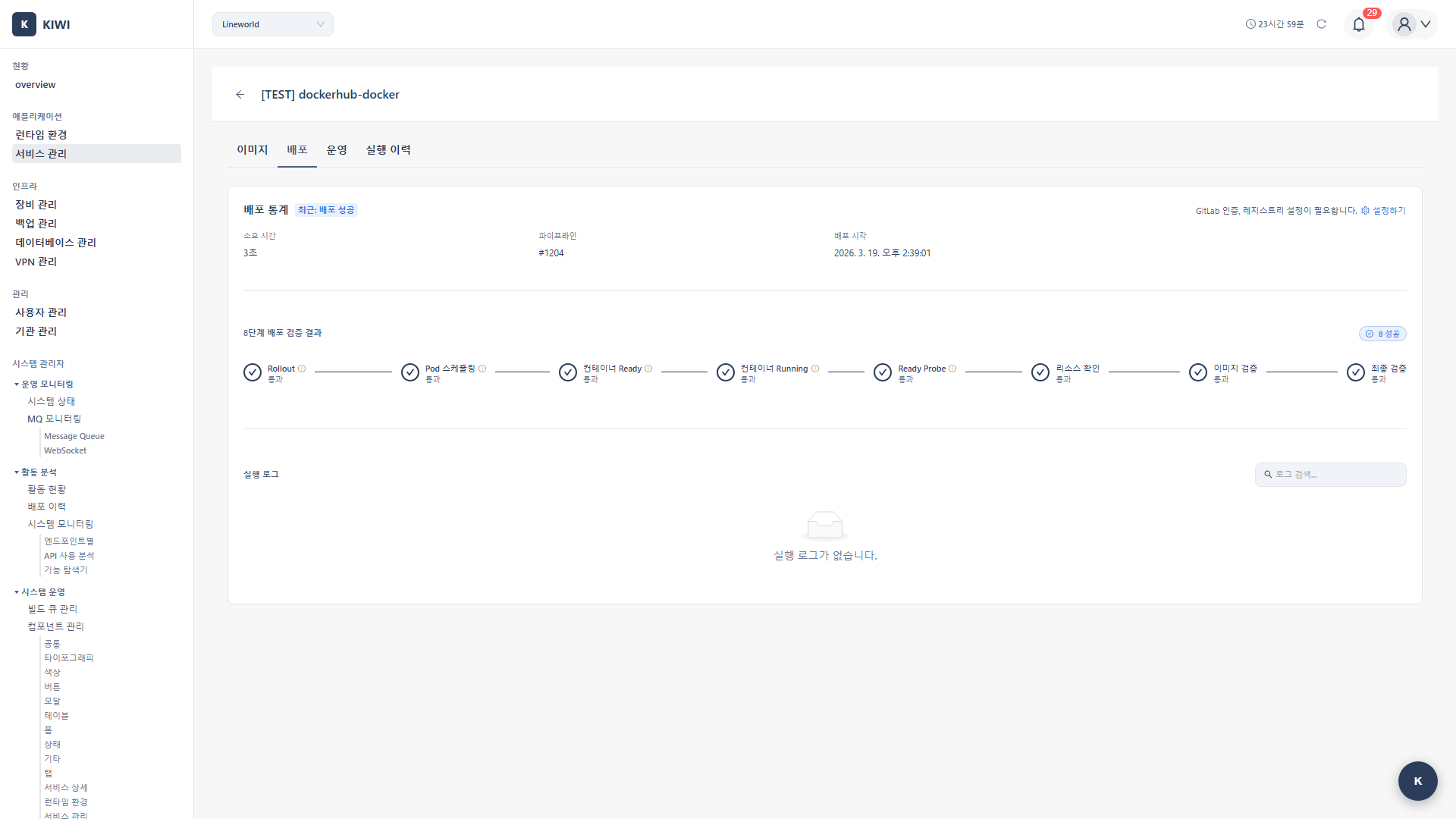
Step 4: Run Deployment
- Review the image version and auto-backup option.
- Click the Deploy button.
- The backend runs
docker-compose pullfollowed bydocker-compose up -dto update the stack. - Deployment progress logs stream in real time.
If a service is registered as multi-service (is_multi_service), all services declared in docker-compose.yml are updated together in a single deployment. The flow is the same whether you deploy a single service or a multi-service stack.
Editing docker-compose.yml
Container name, port mappings, volumes, environment variables, networks, and every other detailed setting are managed in docker-compose.yml. Edit them directly in KIOPS's Compose edit mode. (See: Docker Compose, Volume, Environment variable)
docker-compose.yml uses YAML syntax, so use 2 spaces for indentation, no tab key. Even a single misaligned space or a mixed-in tab causes the entire deployment to fail with errors like yaml: line N: did not find expected key. KIOPS's Compose editor flags indentation errors in advance — check that there are no red underlines before saving.
Editable Items
services:
  api:
    image: harbor.company.com/library/app:latest
    container_name: my-web-app
    restart: unless-stopped
    ports:
      - "8080:80"
      - "8443:443"
    volumes:
      - app-data:/app/data
      - ./config:/app/config:ro
    environment:
      NODE_ENV: production
      DATABASE_URL: ${DATABASE_URL}
    networks:
      - app-network

networks:
  app-network:
    driver: bridge

volumes:
  app-data:
| Item | docker-compose key |
|---|---|
| Container name | container_name |
| Restart policy | restart (no / on-failure / always / unless-stopped) |
| Port mapping | ports |
| Volume mount | volumes |
| Environment variables | environment or env_file |
| Network settings | networks |
Do not put passwords or API keys directly in docker-compose.yml. Move them to an .env file or a Secret.
Step 5: Check Container Status
Check container status in the operations modal. The Docker operations modal contains the Overview / Container List / Deployment Management / Log Viewer / Command Execution / Domain Settings tabs (the Log Viewer and Command Execution tabs appear only when you have the corresponding permission). Domain-targeted DAST scans have been moved to the [Security Analysis] page and are no longer in the operations modal.
- Click the Operations card for the service on the [Service Management] page.
- In the operations modal, select the Container List tab to see:
- Status: Running / Stopped / Error
- Ports: Mapped port information
- Created Time: When the container was created
- Resources: CPU / Memory usage
Container Controls
Use the Deployment Management tab in the operations modal to redeploy, stop, or start the docker-compose stack.
Troubleshooting
Container Startup Failure
- Port conflict: Change the host port in docker-compose.yml.
- Image not found: Verify the tag exists in the registry and credentials are correct.
- Permission issue: Check permissions on volume mount paths.
Container Crash (Repeated Restarts)
- Missing environment variables: Verify required environment variables are set.
- Dependency issue: Check error messages in logs.
- Insufficient memory: Adjust resource limits or optimize the application.
Cannot Access from Outside
- Port not mapped: Verify the
portsconfiguration in docker-compose.yml. - Firewall blocking: Allow the port in the host firewall.
- Internal container error: Check logs and application status.
Check real-time logs in the Log Viewer tab of the operations modal.
What's Next
If the Docker deployment finished successfully, here is a recommended path:
- Verify auto-backup setup: After your first deployment, open the [Backup Management] page and confirm a backup was actually created and uploaded to the external storage.
- Learn the Compose edit guide: Detailed settings such as container name, ports, and volumes are configured in Compose edit mode. Walk through the most common options once so you can recognize them later.
- Use the operations modal: Get comfortable with the Log Viewer, Command Execution, and Deployment Management tabs in the operations modal so you can inspect container state and respond quickly when issues happen.
Related Guides
- K8s Deployment - Kubernetes cluster deployment.
- Rollback - Restore to previous version.
- Operations Management - Container monitoring.