Remote Command Execution
Sometimes logs alone are not enough to identify the problem. In such cases, you can run kubectl/docker/podman commands from the Command Execution tab in the operations modal for in-depth debugging.
The Command Execution tab is available for all runtimes, but the input method differs.
- Kubernetes: There is no Pod dropdown; you type the full
kubectlcommand. - Docker · Podman: Commands run on the host when no container is selected, or inside the container when one is selected.
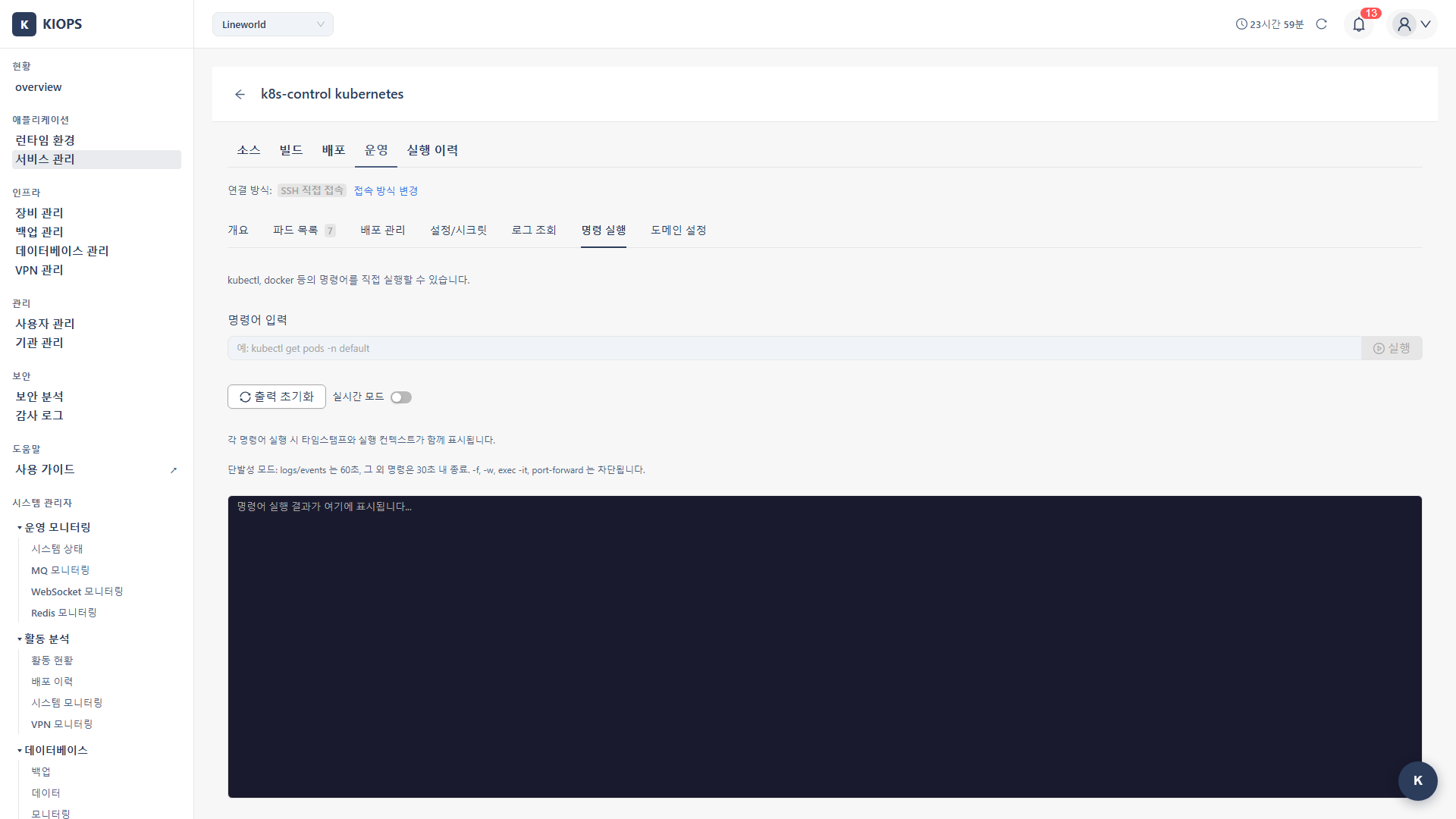
KIOPS's Command Execution is a one-shot or streaming command execution model. Interactive and port-forwarding options such as kubectl exec -it, docker exec -it, port-forward, and attach are blocked, so you cannot use it as an interactive shell session.
Feature Overview
KIOPS supports two execution modes.
- One-shot mode: Runs a single command and returns the result.
logsandeventscommands time out at 60 seconds, while all other commands time out at 30 seconds. Long-running and port-forwarding options such as-f,-w,exec -it, andport-forwardare blocked. - Streaming mode: Streams the command's stdout in real time. Up to 10 minutes per session and up to 5MB of output.
exec -it,port-forward, andattachare blocked.
Each user can run up to 3 concurrent streaming sessions.
Accessing the Command Execution Tab
- [Service Management] → Select a service.
- Click the Operate stage.
- Select the Command Execution tab.
Command Input
Kubernetes Mode
- There is no Pod dropdown.
- Enter the full
kubectlcommand. - In streaming mode, the namespace bound to the service is auto-attached as
-n <namespace>. Specifying a different-nvalue or--namespacein the command is blocked. - To prevent cross-namespace access,
-Aand--all-namespacesare also blocked. - As a result, every command runs only within the namespace associated with the service.
Example:
kubectl get pods -n my-namespace
kubectl describe pod my-pod -n my-namespace
kubectl logs my-pod -n my-namespace --tail=200
Docker / Podman Mode
- Container selection is optional.
- Not selected: The command runs on the host (over SSH).
- Selected: The command is executed via
execagainst the chosen container.
Example:
# Run on the host (no container selected)
docker ps
docker images

# Run inside the container (container selected)
ls /app
cat /etc/hosts
Per-Mode Limits
One-Shot Mode
- Command timeout: 60 seconds for
logs/events, 30 seconds for all other commands - Blocked options:
-f,-w,exec -it,port-forward - Long-running commands (such as
tail -f) do not work in one-shot mode. Use streaming mode instead.
Streaming Mode
- Session max: 10 minutes
- Output max: 5MB
- Concurrent sessions per user: 3
- Blocked options:
exec -it,port-forward,attach
Reviewing Results
- Command output is displayed in the output area.
- In streaming mode, output accumulates as a live stream.
- Error messages are shown when failures occur.
Commonly Used Commands
Here are commands frequently used in practice. Copy and use the ones you need.
If you're not familiar with Linux commands, start with read-only commands (cat, ls, ps, etc.) first. They're safe because they don't change the system.
Kubernetes (kubectl)
# Pod list
kubectl get pods -n <namespace>

# Pod details
kubectl describe pod <pod-name> -n <namespace>

# Recent 200 log lines
kubectl logs <pod-name> -n <namespace> --tail=200

# Deployment status
kubectl get deploy -n <namespace>

# Events
kubectl get events -n <namespace> --sort-by='.lastTimestamp'
Docker / Podman (Host)
# Container list
docker ps

# Image list
docker images

# Disk usage
docker system df

# Logs (use --tail in one-shot mode)
docker logs --tail=200 <container>
Inside a Container (Docker/Podman mode with container selected)
# OS info
cat /etc/os-release

# Hostname
hostname

# Process list
ps aux

# Memory usage
free -m

# Disk usage
df -h

# Environment variables
env | grep -i database
Debugging Scenarios
Scenario 1: Diagnosing Insufficient Memory
When a Container keeps restarting due to OOM (Out of Memory).
Symptom: Container suddenly terminates and shows "OOMKilled" status.
Diagnostic commands (Docker/Podman mode, container selected):
free -m
ps aux --sort=-%mem | head -5
Analysis: Check which process is using the most memory.
Response:
- Increase the memory limit.
- Or fix the code if there's a memory leak.
Scenario 2: Network Connection Issue
- Symptom: DB connection failure
- Execute commands (container selected):
nc -zv database-host 5432
nslookup database-host - Analyze results: Check DNS resolution or port connectivity.
- Response: Check network policies and service endpoints.
Scenario 3: Verifying Configuration Files (K8s)
- Symptom: Abnormal application behavior
- Execute commands:
kubectl exec <pod> -n <ns> -- cat /app/config/application.yml
kubectl exec <pod> -n <ns> -- env - Analyze results: Verify configuration values.
- Response: Modify ConfigMap/environment variables.
Scenario 4: Real-Time Log Monitoring
Long-running commands such as tail -f are blocked in one-shot mode, so use streaming mode.
- Switch the Command Execution tab to streaming mode.
- Enter the command:
kubectl logs -f <pod> -n <namespace> - Output streams in real time (up to 10 minutes / 5MB).
Cautions
Exercise caution when executing commands in a Production environment:
- Use data-modifying commands (rm, mv, truncate) carefully.
- Prohibited: Resource-impacting commands (fork bomb, infinite loops).
- Be careful with screen sharing as sensitive information may be displayed.
Blocked Commands / Options
- Interactive:
kubectl exec -it,docker exec -it - Port forwarding:
kubectl port-forward - Attach:
kubectl attach,docker attach - Cluster-wide namespaces:
kubectl -A,kubectl --all-namespaces - One-shot mode only:
-f,-w
Commands to Avoid
rm -rf /- Deletes the entire system.:(){ :|:& };:- Fork bomb (resource exhaustion)kill -9 1- Terminates PID 1chmod -R 777 /- Security vulnerability.dd if=/dev/zero of=/dev/sda- Destroys the disk
Safe Practices
- Read-only commands first: Understand the situation with
cat,ls,ps,kubectl get,docker ps, etc. - Test in non-production environments first: Test risky commands in development.
- Check backups: Verify backup status before modifying important files.
- Peer review: Have a colleague present for critical operations.
Permissions
Permission Notice: If you cannot access command execution, please request permission from your organization manager. The Command Execution tab is disabled without proper permissions.
Audit Log
All command executions are recorded in the audit log:
- Execution time: When the command was run
- Executor: The user who ran the command
- Target: Infrastructure / namespace / container
- Command: The command that was run
- Result: Success/failure
Troubleshooting
- "command not found": The command does not exist in the container. Use a different command or install the package.
- "Permission denied": Insufficient permissions. Check the required user/permissions.
- Blocked option error: Confirm the command does not include blocked options such as
-it,port-forward, or-A. - No response / timeout: The one-shot mode limit may have been exceeded (60s for
logs/events, 30s for other commands). Use streaming mode or simplify the command. - Streaming session fails to start: You may have exceeded the per-user limit of 3 concurrent sessions. Close an existing session.
When the Container Has No Shell
KIOPS's command execution is a command execution model, not a container-entry session. Only when you select a container in Docker/Podman mode and use exec do you need a shell or binaries inside the container. Minimal images (distroless, etc.) may not have a shell; in that case, invoke the binaries included in the image directly.
Related Guides
- Log Monitoring - Log viewing.
- Container Management - Pod/Container control
- Operations Management Overview - Full operations feature set