Profile
Path: /profile
Permission: All logged-in users
A page for viewing and managing your account information. You can manage personal settings in one place, including changing your name, changing your password, and deleting your account.
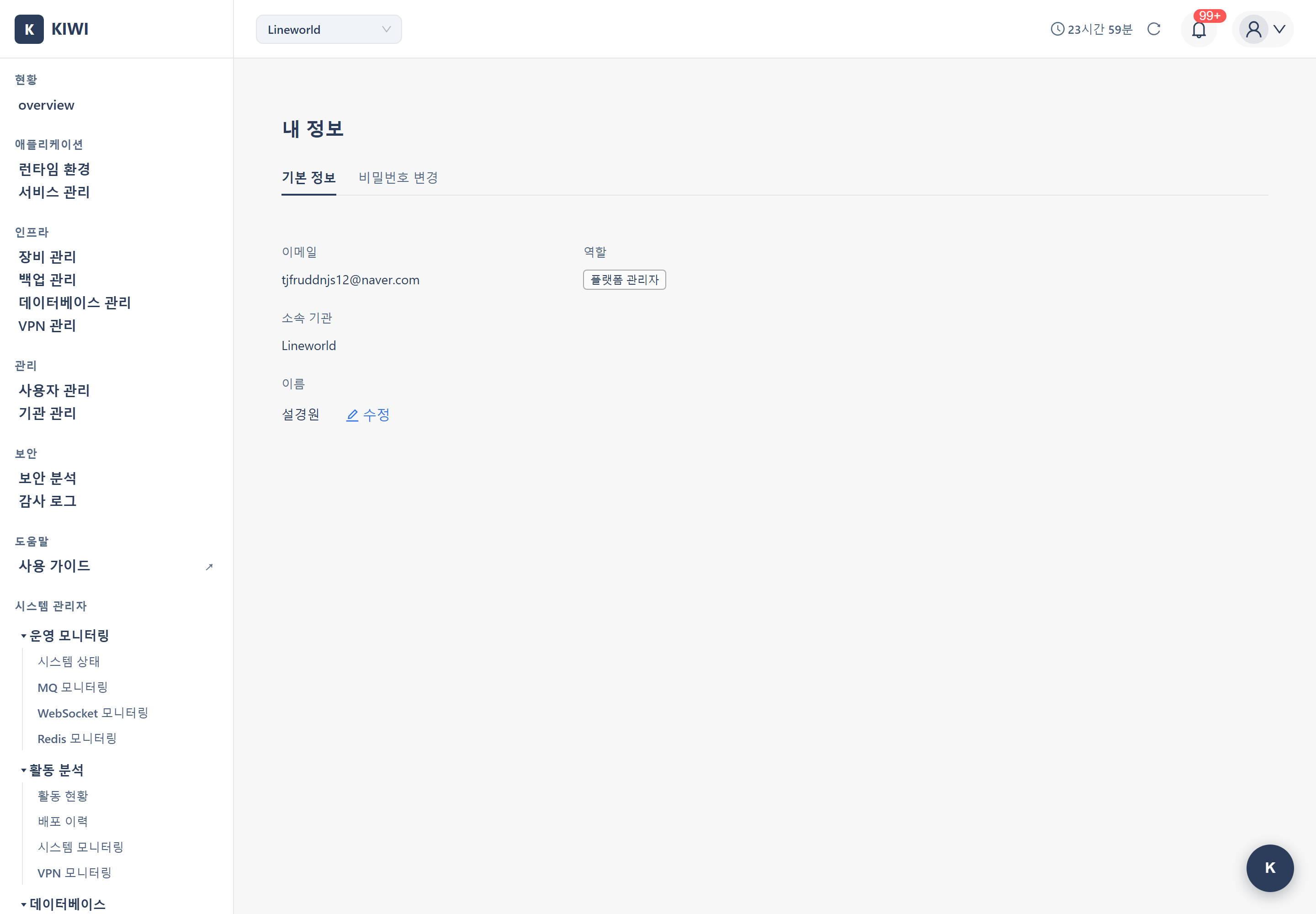
The profile page is more than just viewing personal information - it's the starting point for account security:
- Maintain Account Security: Protect your account by regularly changing your password.
- Smooth Team Collaboration: An accurate display name helps team members easily identify you.
- Account Cleanup: You can deactivate accounts you no longer use by deleting them yourself.
Page Layout
The [Profile] page consists of two tabs.
- Basic Information (
info): Displays email, role, organization, and name; allows name editing and account deletion. - Change Password (
password): Changes to a new password after verifying the current password.
Key Features
Profile Information View
Information you can check on the Basic Information tab:
- Email: The email address used for login. Cannot be modified because it serves as the account identifier.
- Role: One of PlatformAdmin / Manager / Member. Assigned by an administrator and cannot be changed by yourself.
- Organization: The name of the currently selected organization.
- Name: The name displayed to team members. You can edit this yourself.
Editing Your Name
Click the Edit button (pencil icon) next to the name field on the Basic Information tab to edit inline. Enter 2–50 characters in Korean or English. When saved, the display name at the top of the screen is immediately updated.
Changing Your Password
Performed on the Change Password tab.
- Enter your current password (for identity verification).
- Enter your new password.
- Re-enter the same value in Confirm New Password.
- Click the Change Password button.
Password Requirements:
- Minimum 8 characters
- A combination of 2 or more from letters / numbers / special characters
- Must be different from the current password
- 12 or more characters is recommended (longer is safer).
- Passphrase-style passwords are easy to remember and secure (e.g., "MyDog@te2Pizza!").
- Do not include personal information (birthdate, phone number, etc.).
- Do not use the same password as other services.
Account Deletion
Click the Delete Account button at the bottom of the Basic Information tab to start the deletion process. The deletion modal requires you to pass both of the following confirmations before you can submit:
- Enter your current password and type your own email exactly (double confirmation)
- Choose how services you created are handled: "Release ownership only (keep services)" or "Delete services as well"
After completing the confirmation, your account is deactivated and you are automatically logged out.
- After deletion, you must register again with the same email.
- Account deletions are not exposed to PlatformAdmin (to ensure system operation stability).
- If you have ongoing work or resources you manage, delegate permissions to another member before deletion.
Email cannot be changed directly because it is used as the account's unique identifier. If a change is needed, contact your organization Manager. They can create a new account and transfer your existing permissions.
Understanding Roles
KIOPS has three roles, and available features differ based on each role.
PlatformAdmin
The highest-level role that manages the entire platform.
- Can view/manage all organizations and users.
- Can access operations-only screens such as DB Explorer (
/db-explorer) and DB Monitoring (/db-monitoring). - Can manage users who do not belong to any organization through the All Users tab.
Manager
The operations administrator role for the organization.
- Invite users within the organization and grant/revoke permissions
- Process users pending registration approval
- Manage most resources such as devices, runtimes, and services
- Change organization settings
Member
A general user who uses features within the granted permission scope.
- Basic viewing: dashboard, service list, etc.
- Performs individual operations such as build, deploy, and backup based on granted permissions
- Manages own profile (name, password)
Only Managers or PlatformAdmins can change roles. If you need individual feature permissions, request permission grants from a Manager on the [Permission Management] page.
How to Use
Changing Your Name
- Click the profile icon in the upper right, then select Edit My Info to open the [Profile] page (display name "My Info").
- On the Basic Information tab, click the Edit button next to the name field.
- Enter the new name.
- Click the Save button.
Since names are also recorded in audit logs, we recommend using a trackable real name or team nickname.
Changing Your Password
- Navigate to the [Profile] page.
- Select the Change Password tab.
- Enter the current password / new password / confirm new password.
- Click the Change Password button.
Deleting Your Account
- Navigate to the Basic Information tab on the [Profile] page.
- Click the Delete Account button at the bottom of the page.
- In the deletion modal, enter your current password and your own email exactly (double confirmation).
- Choose how services you created are handled (release ownership only / delete services as well).
- After submitting, your account is deactivated and you are automatically logged out.
Account Security Guide
Password Management Best Practices
- Change your password at least every 3 months.
- Do not reuse previously used passwords.
- Do not use the same password as other services (personal email, social media, etc.).
- Use character combinations that are difficult to predict.
When You Notice Suspicious Activity
- Immediately change your password.
- Report to a Manager or PlatformAdmin and request an [Audit Log] review.
- Also change passwords on other services that use the same password.
Frequently Asked Questions
KIOPS does not provide a self-service password recovery/reset feature. Request a password reset from a Manager or PlatformAdmin.
Email cannot be changed directly as it is used as the account identifier. Contact a Manager to request a new account creation.
Yes. However, previously held permissions and resources are not automatically restored, so you must request permission re-grants from a Manager.
Important Notes
- Email Cannot Be Changed: Email is the account's unique identifier. Contact a Manager if a change is needed.
- When You Lose Your Password: There is no self-service reset feature, so request a password reset from a Manager or PlatformAdmin.
- Role Changes: Role (PlatformAdmin/Manager/Member) changes can only be made by Managers or PlatformAdmins.
- Recovery After Deletion: Once deleted, an account is not automatically restored, so decide carefully.