User Management [Manager Only]
Path: /users
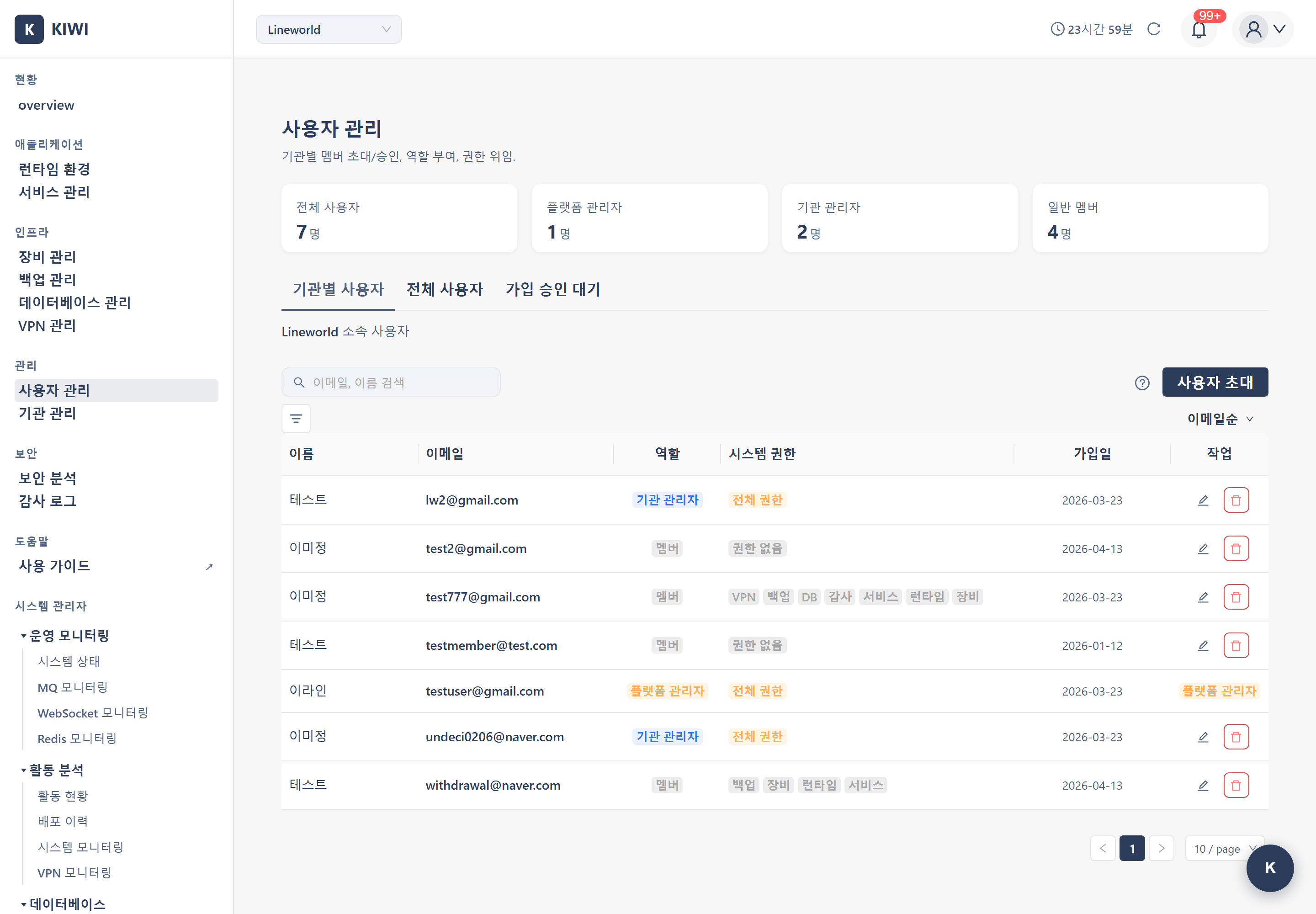
A page for managing users within an organization and assigning roles. This page is only accessible to organization managers (Manager) and PlatformAdmin. [User Management] is composed of 2 to 3 tabs depending on role. A regular Manager sees 2 tabs (Organization Users and Pending Approval), while a PlatformAdmin additionally sees the All Users tab for a total of 3 tabs.
- Organization Users: Members of the organization the current user belongs to.
- All Users (PlatformAdmin only): The full list of users on the platform. Not shown to regular Managers.
- Pending Approval (N): Users who have requested to join but have not been approved yet.
Why Do You Need User Management?
When working on team projects, having all team members with identical permissions can be risky. For example, you need to prevent situations where a new developer accidentally changes production server settings, or an external contractor accesses sensitive information.
The [User Management] page provides the following benefits:
- Enhanced Security: Prevent security incidents by granting only necessary permissions to the right people.
- Separation of Responsibilities: Clearly distinguish who can perform what actions.
- Efficient Collaboration: Allow team members to focus on features relevant to their roles.
KIOPS follows the Role-Based Access Control (RBAC) principle. You can implement the "principle of least privilege" by assigning appropriate roles based on users' positions or responsibilities.
Understanding the Role System
KIOPS provides three roles. Understand the characteristics of each role and assign them appropriately for your situation.
- PlatformAdmin (Platform Administrator): Manages the entire KIOPS platform. Has access to all organizations and the full user list, and is the only role that can access the All Users tab and platform-level settings.
- Manager (Organization Admin): Target users include team leaders, project managers, and system administrators. Within their organization they can remove users, approve signup requests, grant Member permissions, and modify organization settings. However, promotion to a higher role (promoting a Member to Manager or assigning PlatformAdmin) can only be done by a PlatformAdmin, and they cannot change their own role.
- Member (Regular Member): Target users include developers, operators, and external contractors. Uses features within the permissions granted to them and has basic view access. Has no access to user management features.
- When PlatformAdmin is needed: A system operator responsible for the entire platform.
- When Manager role is needed: When you need to manage team members or approve new member signup requests.
- When Member role is appropriate: When focusing only on development/operations and delegating user management to others.
Generally, we recommend having 2-3 Managers per team to ensure business continuity.
KIOPS's user roles are exactly PlatformAdmin / Manager / Member — three roles in total. Roles named Viewer, Developer, Operator, or Admin do not exist; fine-grained authorization is configured per permission category on the [Permissions] page.
A single user can belong to multiple organizations and have different roles in each. For example, you might be a Manager in Project A but a Member in Project B.
Organization Users List Layout (6 columns)
The Organization Users tab table consists of the following 6 columns.
- Name: User's display name. Reference when identifying team members.
- Email: User's login email address. Used for accurate user identification.
- Role: One of PlatformAdmin / Manager / Member.
- System Permissions: 7 permissions — infra / service / backup / device / database / vpn / audit — shown as badges.
- Join Date: Date joined the organization. Used for team management and audit purposes.
- Actions: Per-row action buttons such as edit, permission change, and delete.
The "Status (Active/Inactive)" column is not shown on the Organization Users tab; it exists separately on the Signup Approval tab.
Search, Sort, and Filter
Use the controls above the table to quickly find users.
- Search: Search by partial email or name.
- Sort: Sort by email, role, or join date.
- Filter: Filter by role or status.
Signup Approval Workflow
A user picks an organization on the signup screen and submits a join request, which a Manager then approves/rejects from the Signup Approval Pending tab.
Processing a Join Request
- On the [User Management] page, open the Signup Approval Pending (N) tab. The number in parentheses is the count of pending requests.
- Review the requester's email, name, and request time in the list.
- Click Approve on the row — the user is added to the organization as a Member.
- Inappropriate requests can be rejected with the Reject button; the user can submit a new request later.
Approved users only receive the Member role by default. If they need additional permissions, grant them per permission category on the [Permissions] page.
How to Use
Changing a User's Role
Here's how to change an existing member's role. Role changes take effect immediately, and the user will have new permissions without re-logging in.
-
Find the user whose role you want to change in the user list.
- Use the search function if the list is long
-
Click the Change Role button in that user's row.
- Or you can click directly on the role column
-
Select the new role:
- PlatformAdmin (Platform Administrator): Grant platform-wide management permissions (selectable by PlatformAdmin only).
- Manager (Organization Admin): Grant organization administrator permissions (selectable by PlatformAdmin only).
- Member: Change to standard permissions.
-
Click the Save button to complete the change.
Only a PlatformAdmin can grant the Manager role or assign PlatformAdmin. A regular Manager who is not a PlatformAdmin can adjust a Member's individual permissions, approve signups, and remove members, but cannot promote a Member to Manager or assign PlatformAdmin.
Role changes are applied immediately. Even if the user is currently logged in, refreshing the page will apply the new permissions.
Removing a Member
Here's how to remove a member who no longer needs to belong to the organization.
-
Find the user you want to remove in the user list.
-
Click the Remove button in that user's row.
-
When the confirmation dialog appears, click the Remove button to confirm.
- The removed user will lose all access to this organization
- Membership in other organizations is not affected.
- The last remaining Manager cannot be removed (at least 1 Manager required per organization)
Searching for Users
Here's how to quickly find specific users when you have many members.
-
Enter a search term in the search box at the top of the screen:
- Email address: Full or partial (e.g.,
kim@,@company.com) - User name: Full or partial.
- Email address: Full or partial (e.g.,
-
Press Enter or click the search button.
-
Find the desired user in the search results.
Frequently Asked Questions
No, you cannot change your own role. This is a safety measure to prevent accidental loss of permissions. If you need a role change, please ask another Manager.
Best Practices
- Maintain 2-3 Managers: Designate multiple Managers to prepare for situations like vacations or resignations.
- Regular Member Reviews: Review the member list quarterly and clean up unnecessary accounts.
- Principle of Least Privilege: Start new members with the Member role and add permissions as needed.
- Immediate Offboarding: Remove departing employees from membership immediately to maintain security.
Glossary
If you encounter unfamiliar terms, refer to the explanations below.
- Organization: The top-level unit for managing users and resources in KIOPS. This can be a company, department, or project team.
- Role: A classification that determines the scope of user permissions. There are three: PlatformAdmin, Manager, and Member.
- Membership: The state of belonging to a specific organization. A single user can have memberships in multiple organizations.