Security Analysis
Not sure where to start with software security? KIOPS's DevSecOps security analysis features help you automatically detect security vulnerabilities at every stage, from source code to running applications and infrastructure configuration.
The cost of fixing security vulnerabilities increases exponentially the later they are discovered in development. By continuously checking security from code writing to post-deployment, you can reduce costs and deliver secure software.
Accessing the Security Analysis Page
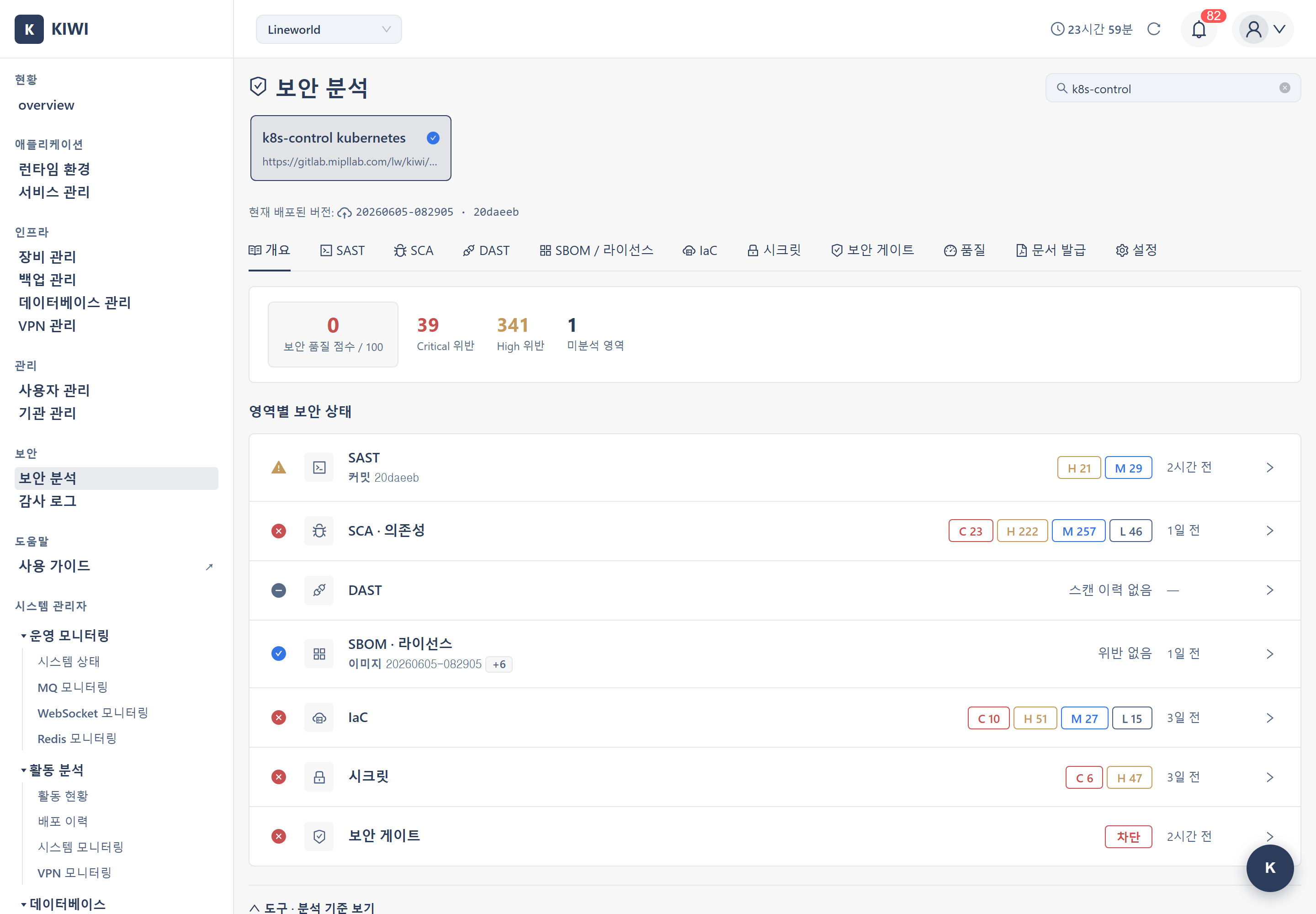
Security Analysis is a dedicated page in KIOPS. Click the [Security Analysis] menu under the "Security" group in the sidebar to enter it (path /security).
The usage flow after entering is as follows.
- Select a service to analyze from the service selection card carousel at the top of the page. You can filter by service name or Git URL with the search box.
- Eleven tabs appear for the selected service. Move to the desired security area tab to run scans or view results.
- If you select a service with no scan history, the Overview tab is shown first, guiding you on which analyses to run and in what order.
Previously, code analysis and image analysis were accessed from within the source/build cards of the service detail page. They have now been reorganized into the [Security Analysis] menu. All security areas are accessed via the path "[Security Analysis] menu > select service > corresponding tab".
Direct URL Entry
The Security Analysis page can open a specific service and tab directly via URL query parameters.
?id={serviceId}: Specifies the service to select.?area={tabKey}: Specifies the tab to auto-select on entry (sast,sca,dast,sbom,iac,secrets,gate,quality,reports,settings,overview).
Example: /security?id=12&area=sast directly opens the SAST tab for service 12.
The Eleven Tabs
The security analysis of a selected service consists of eleven tabs.
| Tab | Role | Tool |
|---|---|---|
| Overview | Catalog of 7 security areas. Shown automatically when there is no scan history | - |
| SAST | Static source code analysis | Semgrep + OpenGrep (run sequentially, merged as a union) |
| SCA | Image / dependency vulnerability (CVE) analysis | Trivy + Dependency-Check (run together) |
| DAST | Dynamic analysis of running apps | ZAP + Nuclei (run together) |
| SBOM / License | Component inventory and license analysis | Syft · ScanCode Toolkit (run directly as an independent scan in the tab) |
| IaC | Configuration error checks of infrastructure definition code | Checkov |
| Secret | Detection of exposed keys / tokens in code and commit history | Gitleaks |
| Security Gate | Combined deployment readiness verdict from the 6 areas (excluding the gate) | OPA |
| Quality | Security summary + DORA metrics + DORA 30-day trend + pipeline metrics + recent incidents | - |
| Reports | GS certification document generation (with compliance status) | - |
| Settings | Common Git URL / branch / token settings for SAST / IaC / Secret | - |
The Quality Tab
The Quality tab shows a service's security and deployment health on a single screen. The following card sections appear in order, from top to bottom.
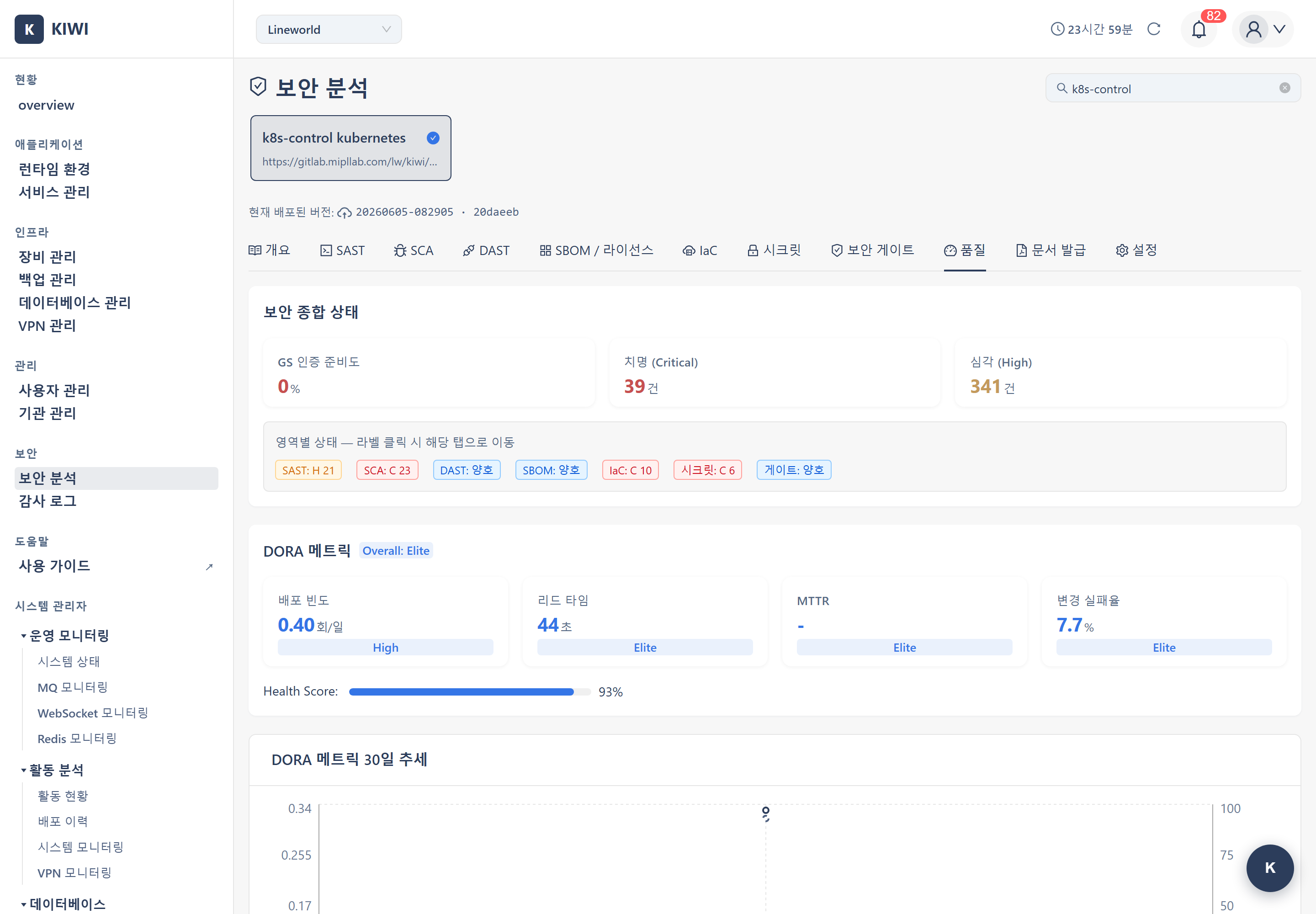
- Security Summary: Summarizes the entire security analysis of the selected service.
- GS Certification Readiness (0-100%): Shows how well the security areas are satisfied as a percentage. The color changes based on the value: stable at 90% or above, requiring attention below 50%.
- Critical and High counts: The combined count of Critical/High vulnerabilities across all areas.
- Per-area status labels: Displays the status of each area (SAST, SCA, DAST, SBOM, IaC, Secret, Gate) as tags. Clicking a label jumps directly to that security area tab.
- DORA Metrics: Shows 4 cards (deployment frequency, lead time, MTTR, change failure rate) with each metric's grade, plus the overall grade and Health Score. For detailed meanings, see the DORA Metrics document.
- DORA Metrics 30-Day Trend: Shows DORA metric changes over the last 30 days as a time-series graph based on daily snapshots. Only data accumulated since snapshot collection began is shown, so little data may appear initially.
- Pipeline Metrics (30 days): Day-to-day build/deploy operational metrics that the 4 DORA metrics do not cover.
- Total / Success / Failure / Success-rate cards: Show the number of pipelines run in the last 30 days and the success rate.
- Per-step build and deploy times: Show the average, maximum, and minimum durations of each step.
- Recent Incidents: A list of registered incident history. You can register or view incidents directly.
The Seven Security Areas
SAST (Static Code Analysis)
Inspects source code with pattern-based analysis without building it to find vulnerable code. KIOPS runs Semgrep first and then runs OpenGrep when it succeeds, merging their results as a union. There is no tool selection toggle.
- SQL Injection (CWE-89), XSS (CWE-79), Command Injection (CWE-78)
- Hardcoded Credentials (CWE-798), Path Traversal (CWE-22)
Details: SAST Scan
SCA (Composition Analysis)
Finds known CVE vulnerabilities in OS packages and library dependencies of built container images. KIOPS runs Trivy and Dependency-Check together and merges their results as a union.
Details: SCA Scan
DAST (Dynamic Analysis)
Sends requests from outside to a deployed, running web application to find runtime vulnerabilities. ZAP and Nuclei run simultaneously on the same target domain, and results are unified and displayed in a single row.
Details: DAST Scan
SBOM / License (Component Inventory)
The Software Bill of Materials (SBOM). It is an independent scan, separate from SAST/SCA, run directly from the SBOM / License tab. SBOMs are produced by Syft and source licenses by ScanCode, output in CycloneDX 1.6 format. License information is identified together.
Details: SBOM Generation
IaC (Infrastructure Code Analysis)
Checks infrastructure definition code such as Dockerfiles, Kubernetes manifests, and Terraform for security misconfigurations. Uses Checkov.
Details: IaC Scan
Secret (Credential Detection)
Detects exposed API keys, tokens, and passwords across the Git repository code and entire commit history. Uses Gitleaks.
Details: Secret Scan
Security Gate (Deployment Verdict)
Comprehensively evaluates the scan results of the 6 security areas excluding the gate (SAST, SCA, DAST, License, IaC, Secret) against policy criteria to determine deployment readiness. License risk is sourced from the SBOM scan, while the SBOM component inventory itself is not subject to gate evaluation. Uses OPA (Open Policy Agent) policies.
Details: Security Gate
Understanding Security Terms
Seeing a lot of unfamiliar terms? Let's explain them one by one.
- SAST (Static Application Security Testing): Analyzes source code without executing it to find security vulnerabilities.
- SCA (Software Composition Analysis): Checks whether the external libraries and packages used in a project have known security vulnerabilities.
- DAST (Dynamic Application Security Testing): Finds vulnerabilities by sending HTTP requests to a running application.
- SBOM (Software Bill of Materials): A list of all components included in the software.
- IaC (Infrastructure as Code): Infrastructure defined as code, such as Dockerfiles, K8s manifests, and Terraform.
- CVE (Common Vulnerabilities and Exposures): A unique identifier assigned to publicly known security vulnerabilities.
Severity Classification and Response Guide
CVSS-Based Severity
CVSS (Common Vulnerability Scoring System) is a scoring system that standardizes vulnerability severity on a scale of 0-10.
- Critical (CVSS 9.0-10.0): Requires immediate response.
- High (CVSS 7.0-8.9): Requires response within 24-48 hours.
- Medium (CVSS 4.0-6.9): Requires response within 1-2 weeks.
- Low (CVSS 0.1-3.9): Can be addressed in the next release.
- Info (N/A): Optional response. Use as reference information.
When Critical or High severity vulnerabilities are discovered, immediate action is required. Especially in production environments, there is a risk of these vulnerabilities being exploited, so prepare quick patches or temporary workarounds.
Quick Start: Full Security Analysis Flow
If this is your first time, follow these steps to experience the full security analysis.
- Click the [Security Analysis] menu in the sidebar.
- Select a service to analyze from the card carousel at the top.
- Check the tools and prerequisites of the 7 areas in the Overview tab first.
- Register the Git URL, branch, and token in the Settings tab (common to SAST/IaC/Secret).
- Run static source code analysis in the SAST tab.
- Analyze CVEs in built images in the SCA tab.
- SBOM/License is an independent scan, separate from SAST and SCA. Run it yourself from the SBOM / License tab when needed.
- Check infrastructure misconfigurations and exposed credentials in the IaC and Secret tabs.
- After deploying the service, analyze runtime vulnerabilities in the DAST tab.
- Check the combined deployment verdict of the 6 areas in the Security Gate tab.
Security Analysis Best Practices
Shift-Left Security
"Shift-Left" means moving security checks earlier (to the left) in the development process.
- Run SAST from the beginning of development: Finding vulnerabilities at the time of coding makes fixes easier.
- Check SCA when adding dependencies: Verify there are no known vulnerabilities before introducing new packages.
- Check secrets regularly: Promptly revoke and rotate exposed keys/tokens.
Vulnerability Management
- Prioritize Critical/High
- Manage false positives: Classify confirmed false positives as false_positive and acknowledged un-fixed items as accepted_risk (risk accepted).
- Regular rescans: New CVEs are constantly discovered, so rescan regularly.
- Use the Security Gate: Comprehensively check the 6 area results before deployment.
Related Features
- Service Build/Deploy - Managing services subject to security analysis
- Operations Management - Real-time security monitoring
- Auto CI Setup - Automated security analysis settings