Notification Management
Path: Notification icon (bell) in the top right corner.
KIOPS's notification system ensures you don't miss important activities such as membership requests.
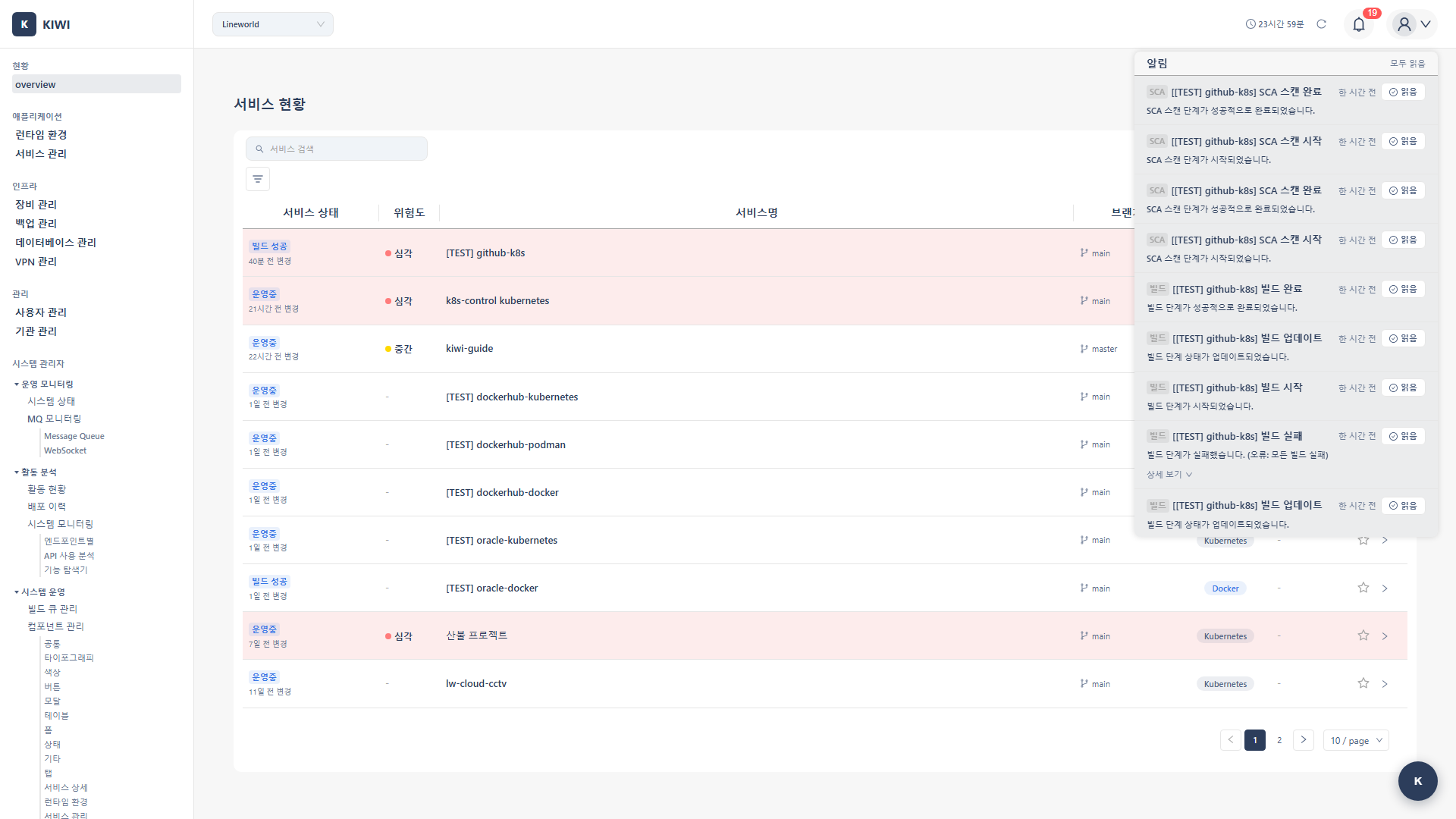
Checking Notifications
Notification Icon
Check notifications through the bell-shaped icon in the top right corner.
- Red Badge: Shows the number of unread notifications.
- Icon Click: Opens the notification panel
Notification List
View recent notifications in the notification panel:
- Notification Title: Main content of the notification.
- Time: When the notification was generated.
- Read Status: Unread notifications are highlighted.
Notification Management
- Mark as Read: Click an individual notification to mark it as read
- Mark All as Read: Click Mark All as Read button to mark all notifications as read
Handling Membership Requests
If you are an organization administrator, you can process join requests from other users.
Approve Request
- Check the Membership Request notification in the notification panel
- Review the requester's information (name, email)
- Click the Approve button.
- The requester is registered as an organization member.
Reject Request
- Check the Membership Request notification in the notification panel
- Click the Reject button.
- The request is rejected and the requester is notified.
Permissions for approved members can be adjusted on the [Permission Management] page.
Requesting to Join an Organization
In KIOPS, you can request to join an organization by selecting one on the signup screen.
How to Request
- Click the Sign Up link on the login page to open the signup screen.
- After entering your basic information, click Select Organization and search for the organization you want to join.
- Submit the Sign Up form; a membership approval request is sent to that organization's manager.
Check Request Status
- Pending: Waiting for administrator approval.
- Approved: Registration as organization member complete.
- Rejected: Request was rejected.
Request processing requires administrator review. Contact the organization administrator directly if urgent.
Notification Types and Status
Notification Types
Internally, KIOPS notifications are classified into the following 5 types:
- organization_invite: Organization invitation delivered to the invited user (exposes Accept / Reject action buttons).
- membership_request: Join request delivered to the organization administrator (exposes Approve / Reject action buttons).
- system: System-generated notifications such as pipeline progress updates (exposes a Mark as read button only).
- pipeline: A value declared in the type definition (actual pipeline notifications are represented as the
systemtype plusdata.stage). - other: Any other notifications (exposes a Mark as read button only).
The action buttons rendered on a notification depend on its type and handling status.
organization_invite(pending) -> Accept / Rejectmembership_request(pending) -> Approve / Rejectsystem/other/ already-resolved notifications -> Mark as read
Notification Status
Each notification carries one of the following 4 status values:
- pending: Not yet handled by the user.
- read: Acknowledged (read) by the user.
- accepted: Request that was accepted.
- rejected: Request that was rejected.
Pipeline Notifications (system type)
Pipeline notifications are emitted as a combination of an SDLC stage and a status (started / completed / failed).
Pipeline stages
| Stage | Code | Description |
|---|---|---|
| Source analysis | source | Fetch and analyze source code from the repository |
| SAST scan | sast | Static application security testing |
| Build | build | Build container image |
| SCA scan | sca | Dependency / SBOM analysis |
| Deploy | deploy | Deploy to runtime environment |
| Operation setup | operation | Configure / apply operational environment |
| DAST scan | dast | Dynamic application security testing |
stage × status matrix (examples)
| Stage | Started | Completed | Failed |
|---|---|---|---|
| source | Source analysis started | Source analysis completed | Source analysis failed |
| sast | SAST scan started | SAST scan completed | SAST scan failed |
| build | Build started | Build completed | Build failed |
| sca | SCA scan started | SCA scan completed | SCA scan failed |
| deploy | Deploy started | Deploy completed | Deploy failed |
| operation | Operation setup started | Operation setup completed | Operation setup failed |
| dast | DAST scan started | DAST scan completed | DAST scan failed |
Pipeline failure notifications store an errorMessage field. Expand the Show Details toggle on the notification entry to see a summary of the failure log so you can quickly identify which stage failed and why.
Organization-Related Notifications
- Organization Invite (organization_invite): Delivered to the invited user when an organization administrator sends an invitation. Shows Accept / Reject buttons.
- Membership Request (membership_request): Delivered to organization administrators when a user requests to join. Shows Approve / Reject buttons.
- Result notifications: Outcomes of join requests arrive as separate notifications and only expose a Mark as read action.
Notifications are currently delivered only through the in-app notification drawer.
Related Guides
- Profile - Profile and account management.
- Permission Management - Role and permission settings.