Audit Log
Path: /audit
A page for recording and viewing all important activities in the system. You can see at a glance who did what and when, making it essential for security audits and troubleshooting.
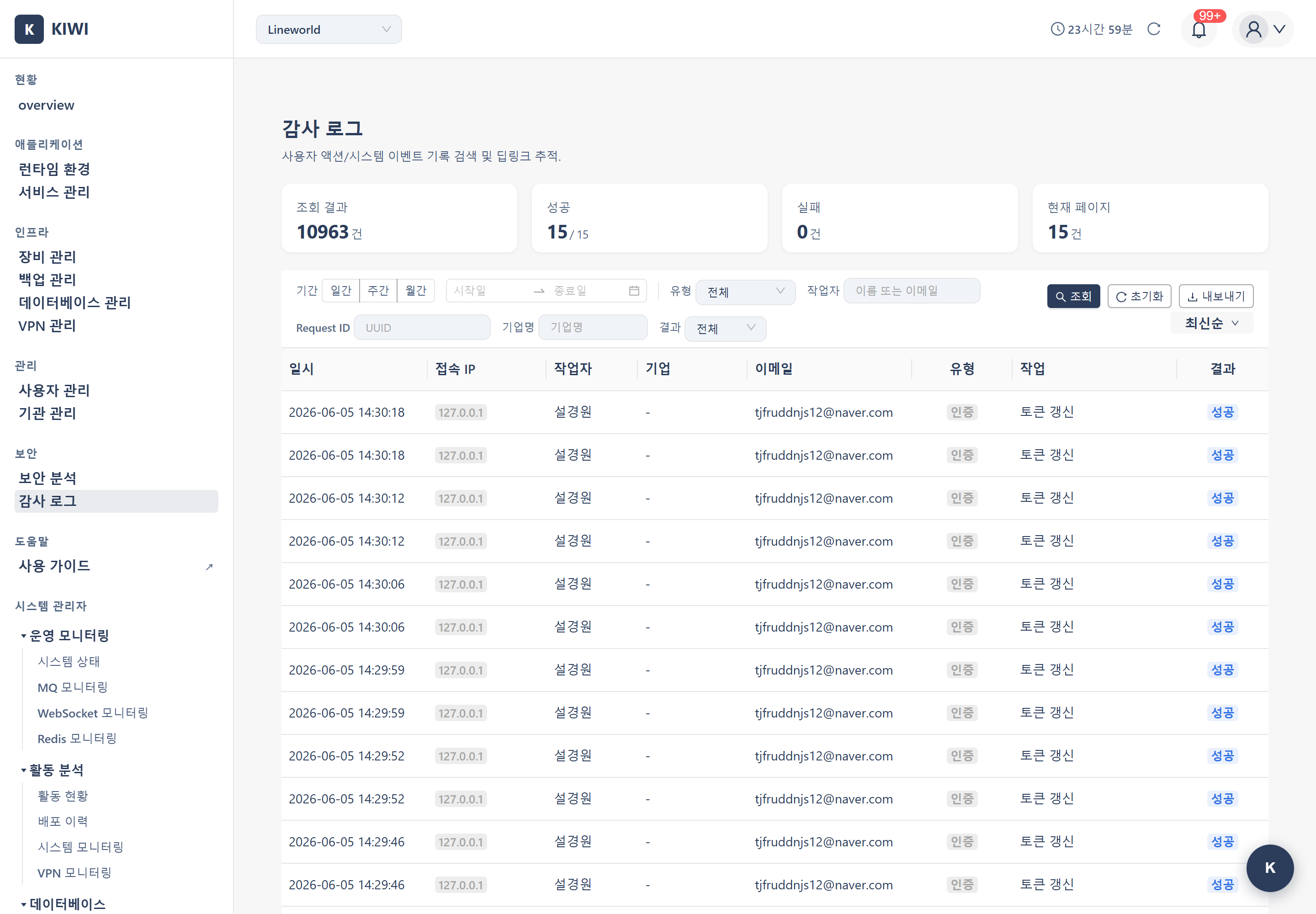
Audit logs are a critical tool for your organization's security and compliance:
- Security Monitoring: Detect abnormal login attempts or unauthorized access.
- Troubleshooting: Track and analyze causes when service failures occur
- Compliance: Meet legal requirements such as privacy laws and information security regulations.
- Accountability: Clearly record who made what changes.
If you cannot access this page, please request permission from your organization manager. Audit log viewing is a restricted permission for security reasons.
Key Features
Understanding Log Types
KIOPS classifies and records system-wide activities into 16 categories. Learn what activities are recorded for each type:
- device: Device management activities (registration, modification, deletion, etc.)
- infra: Infrastructure / runtime environment activities
- service: Service management activities (build, deploy, rollback, configuration changes, etc.)
- auth: Authentication activities (login, logout, password changes, etc.)
- backup: Backup / recovery activities (infra backup creation, restore execution, etc.)
- database: Database activities (DB connection, synchronization, etc.)
- user: User management activities (invitation, role changes, etc.)
- organization: Organization management activities
- audit: Audit log activities (viewing, exporting, etc.)
- vpn: VPN profile / session activities
- secret: Secret / credential management activities
- domain: Domain configuration activities
- monitoring: Monitoring-related activities
- system: System-level activities
- webhook: External webhook activities
- db_backup: Database backup / restore activities
The ActionType options visible in the filter dropdown depend on each user's permissions. For example, organization actions may only appear for users who have the relevant permissions.
When conducting security audits, it's effective to first check for abnormal login attempts using the auth type, then review major service change history using the service type.
Log Export
Audit logs can be exported for analysis or retention purposes. KIOPS supports the following 2 formats.
- xlsx (Excel): Best for spreadsheet analysis when you need multiple sheets, formatting, or a report-style file.
- CSV: Lightweight tabular text format, suitable for importing into other tools.
Download file name pattern:
Audit_Log_YYYYMMDD.xlsx(or.csv)
UI Layout
Log List Columns (8)
The log list consists of the following 8 columns.
- Date/Time: Event occurrence time. Example: 2024-03-01 10:30:00.
- Source IP: IP address where the request originated.
- Performer: Name of the user who performed the action.
- Company: Company / organization the performer belongs to.
- Email: Performer's login email.
- Type: Action type (ActionType). Example: service, auth, device.
- Operation: Specific operation. Example: create, delete, update.
- Result: One of four enums — DONE, FAILED, PROCESSING, PENDING.
There is no separate "Target" column. The target resource is shown in the detail view.
Additional information available when clicking each log entry:
- Request IP: IP address where the request originated (useful for security analysis)
- request_id: Unique identifier for the request. Useful for distributed tracing or correlating logs.
- Details: Detailed request parameters.
- Before/After Data: Compare previous and new values when data was changed.
Using the Filter Panel
You can combine various filters for efficient log searching:
- Period: Specify range with start~end dates.
- Type (ActionType): View only specific log types (multiple selection available)
- The ActionType options shown depend on the user's permissions.
- Result: Select from DONE, FAILED, PROCESSING, or PENDING.
- User: View only specific user's activities.
- Company: Filter by company / organization (PlatformAdmin only).
- request_id search: Find logs that exactly match a specific request ID.
- Sorting: Sort by columns other than time.
- Search debouncing: Search inputs are debounced so the list is queried after a short pause, reducing unnecessary calls.
"View only failed deployment operations in the last week" - Set the period to the last 7 days, type to service, and result to FAILED.
You can jump directly into the audit log page from notifications on other pages (e.g., pipeline notifications, Discord alerts). When you arrive via a deep link, the relevant log entry is shown pre-selected or pre-filtered.
How to Use
Viewing Logs
The most basic way to view logs:
- Navigate to the [Audit Log] page from the left menu
- Recent logs are displayed by default in reverse chronological order.
- Scroll down or use pagination at the bottom to view more logs.
Filtering by Period
To view logs only from a specific period:
- Find the Period section in the filter panel at the top of the screen
- Click Start Date and select a date from the calendar
- Click End Date and select a date from the calendar
- The filter is automatically applied, showing only logs from that period
Frequently used periods (Today, Last 7 days, This month) can be quickly selected using predefined buttons.
Filtering by Type
To view only specific types of activities:
- Click the Type dropdown in the filter panel
- Select the types you want to view (multiple selection available):
- device, infra, service, auth, backup, database, user, organization, audit, vpn, secret, domain, monitoring, system, webhook, db_backup.
- Some entries may be hidden depending on your permissions.
- Click outside the dropdown after selection to apply the filter.
Filtering by Result
To view only successful or failed operations:
- Click the Result dropdown in the filter panel
- Select the desired result status:
- DONE: Operation completed normally. Check when verifying a specific operation was performed.
- FAILED: Operation failed. Check when analyzing issues or detecting security problems.
- PROCESSING: Operation is currently being processed.
- PENDING: Operation is waiting to run.
Viewing Log Details
To view detailed information about a specific log:
- Find the log you want to examine in the log list
- Click the Details button on that row or click the row itself
- A detail information panel opens on the right side of the screen
- You can view the following information:
- Request IP: See where the request came from
- Request Details: Specific request parameters.
- Before/After Data: Compare how data changed (when applicable)
- Error Message: View failure reason (for failed operations)
Exporting Logs
To save logs to a file for audit evidence or analysis:
- First, apply filters to set the range of logs to export.
- Click the Export button at the top of the screen.
- Choose the export format (supported: xlsx (Excel) or CSV).
- Click the Export button — the file is downloaded as
Audit_Log_YYYYMMDD.xlsx(or.csv).
Exported log files may contain personal information such as user emails and IP addresses. Handle files carefully and securely delete them when no longer needed.
Log Details
Understanding Log Entry Structure
Each audit log is stored in the following JSON structure. Reference this for API integration or automation tasks:
{
  "timestamp": "2024-03-01T10:30:00Z",
  "user": "admin@company.com",
  "action_type": "service",
  "action_code": "service:deploy",
  "resource": "my-service",
  "result": "success",
  "ip_address": "192.168.1.100",
  "details": {
    "image": "harbor.company.com/library/my-service:v1.0.0",
    "namespace": "production",
    "replicas": 3
  }
}
Key Action Code Reference
Frequently used action codes organized by category:
Authentication Related
auth:login- User loginauth:logout- User logout
Device Related
device:create- Device registration.device:update- Device information modification.device:delete- Device deletion.
Infrastructure Related
infra:create- Runtime environment registration.infra:update- Runtime environment configuration modification.infra:delete- Runtime environment deletion.
Service Related
service:build- Service build execution.service:deploy- Service deployment execution.service:rollback- Rollback to previous version.
Backup Related
backup:create- Backup creation.backup:restore- Restore from backupbackup:delete- Backup deletion.
Retention Policy
Actual retention periods for audit logs depend on the operating environment. Logs subject to security audits (such as authentication logs) can be configured to be retained longer than general logs, and a separate archive can be used for long-term retention.
According to privacy laws and information security regulations, certain logs must comply with statutory retention periods. Consult with your organization's legal or information security team to set appropriate retention policies.
Glossary
Key terms explained for those new to audit logs:
- Audit Log: A chronological record of all important activities in the system. Tracks "who, when, what" was done.
- Action Code: A code identifying the type of operation performed. Structured as "type:operation" like
service:deploy. - Timestamp: The exact time an event occurred. Recorded in ISO 8601 format (e.g., 2024-03-01T10:30:00Z).
- IP Address: The network location where the request originated. Used for detecting abnormal access.
Important Notes
- Cannot Modify/Delete: Audit logs are automatically recorded by the system for integrity and cannot be modified or deleted by users.
- Export Time: Exporting large amounts of logs may take time depending on data volume
- Privacy Protection: Exported files may contain personal information, so handle them carefully.
- Possible auto-deletion: Logs exceeding the retention period may be cleaned up depending on the operating environment. Export in advance if long-term retention is needed.