K8s Certificate Renewal
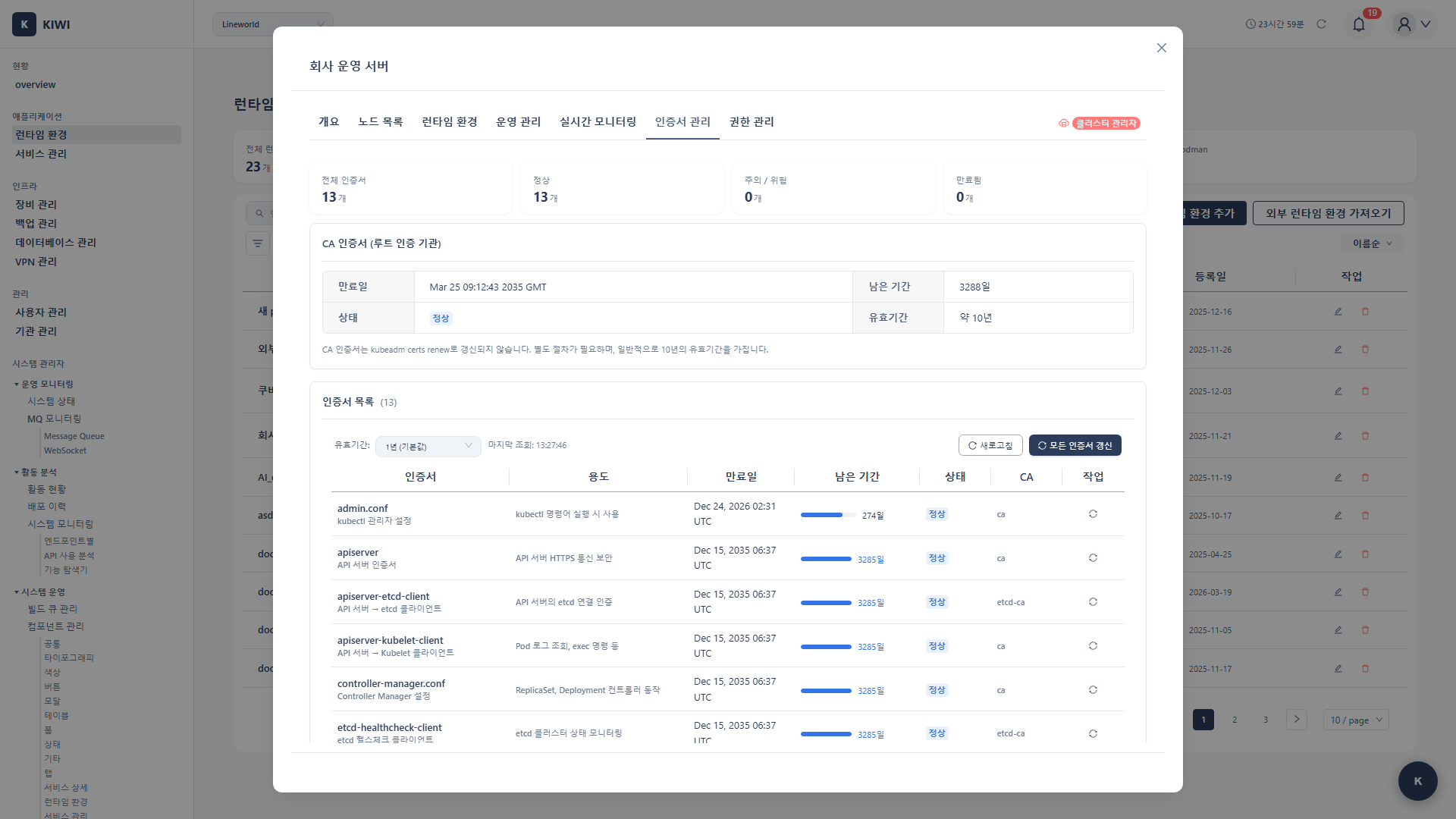
When Kubernetes cluster certificates expire, the entire cluster can stop working. With KIOPS, you can check certificates ahead of expiration and renew them with a simple click.
When certificates expire, kubectl commands fail, Pod scheduling stops, and in the worst case, you lose access to the entire cluster. Regular certificate management is essential.
Certificate Management Tab Location
The KIOPS certificate management screen is located at [Runtime Environments] > select a Kubernetes cluster > Certificate Management tab.
- Navigate to [Runtime Environments] in the left menu.
- Select the Kubernetes cluster you want to manage and open its detail screen.
- Click the Certificate Management tab at the top.
The component files live under
services/operate-modal/tabs/k8s/, but the actual usage location is the Kubernetes cluster detail screen in Runtime Environments (InfraKubernetesSetting).
Certificate Overview
Kubernetes clusters use various certificates to secure communication between components. Based on the output of kubeadm certs check-expiration, KIOPS displays the following 13 certificates.
13 Certificates Renewable by kubeadm
| Certificate | Description |
|---|---|
admin.conf | Cluster admin kubeconfig generated by kubeadm |
apiserver | API server TLS certificate |
apiserver-etcd-client | Used by the API server to connect to etcd |
apiserver-kubelet-client | Used by the API server to connect to kubelets |
controller-manager.conf | Controller manager kubeconfig |
front-proxy-client | front-proxy client certificate |
scheduler.conf | Scheduler kubeconfig |
etcd/ca | CA certificate of the etcd cluster |
etcd/server | etcd server certificate |
etcd/peer | Certificate for communication between etcd nodes |
etcd/healthcheck-client | Client certificate for etcd health checks |
super-admin.conf | super-admin kubeconfig (Kubernetes 1.29+) |
kubelet.conf | kubelet kubeconfig |
CA certificates (e.g., the cluster CA, etcd CA root) are not renewed by kubeadm certs renew. CA certificates have a validity of about 10 years, and renewing them is closer to a cluster rebuild. In the KIOPS certificate tab, CA certificates are shown in a separate area, where only the expiration date is visible — no renew button is provided.
Prerequisites
- A Kubernetes cluster must be registered in KIOPS.
- SSH access to the cluster master node must be configured.
- The user must have the certificate management permission (
can_manage_certificates).
Permission Notice: Without this permission, the renew button in the certificates tab is disabled. Please request permission from your organization manager.
Check Certificate Status
Step 1: Open the Certificate Management Tab
- Navigate to [Runtime Environments] > select a Kubernetes cluster > Certificate Management tab.
- The backend runs
kubeadm certs check-expirationon the master node. - Expiration status for all certificates is displayed.
Step 2: Review the Statistics Cards
The top of the screen displays 4 statistics cards.
- Total: Total number of tracked certificates
- Healthy: Certificates with more than 90 days remaining
- Warning/Critical: Certificates with 90 days or less remaining (warning or error state)
- Expired: Certificates that have already expired
Step 3: Certificate Status Display
Each certificate row visualizes the remaining time as a Progress bar. Color thresholds are as follows.
- Healthy (green): More than 90 days remaining
- Warning (yellow): 90 days or less remaining
- Critical (red): 30 days or less remaining
- Expired: Already expired
Step 4: Raw Output
At the bottom of the screen, the raw output of kubeadm certs check-expiration is shown as-is. Use it for debugging or precise verification.
Certificate Renewal
Step 1: Choose Validity Period
In the dropdown at the top of the screen, choose the validity period for the new certificates.
- 1 year (default)
- 2 years
- 3 years
- 5 years
- 10 years
The selected validity is applied when kubeadm certs renew is executed. 1 year is generally safe; if you want to reduce operational burden, you can choose a longer period.
Step 2: Choose Renewal Method
Pick one of the two methods.
- Renew All Certificates button: Renews all 13 certificates at once. Recommended for most cases.
- Per-row Renew button: Renews a single specific certificate.
A "Selective Renewal checkbox" and a "Component Restart toggle" are not provided. After renewal, kubelet restarts automatically, and the control-plane static Pods reload the certificates automatically.
Step 3: Execute Renewal
- Clicking the renew button displays a confirmation dialog.
- Click Renew — KIOPS connects to the master node via SSH and runs
kubeadm certs renew. - Progress is shown, and after completion the new expiration dates are reflected in the certificate list.
Step 4: Verify Renewal Completion
- The "Certificates have been renewed" message is displayed.
- Confirm the new expiration dates in the certificate list.
- Verify that the "Warning/Critical" and "Expired" stats cards have dropped to 0.
Renewal in HA Clusters
In an HA cluster with multiple control plane nodes, certificates must be renewed on every control plane node.
- Run the KIOPS certificate renewal on the first control plane node.
- SSH into the other control plane nodes and run
kubeadm certs renew allmanually. - Confirm that kubelet has restarted automatically on each node.
If only one node is renewed and the others are not, API calls succeed or fail depending on the node, leading to confusion. Renew all control plane nodes within a short time window if possible.
Post-Renewal Verification
Check Cluster Status
Verify the following after renewal:
- Node Status: All nodes in Ready state.
- Pod Status: System Pods running normally.
- API Access: kubectl commands working normally.
Verify in KIOPS
- Confirm the new expiration dates in the certificates tab.
- Confirm that the statistics card values are all back to healthy.
- Test service deployment/operations functions.
Manual Renewal
When KIOPS automatic renewal fails or manual renewal is needed:
kubeadm Cluster
Run via SSH on the master node:
# Check certificate expiration
kubeadm certs check-expiration

# Renew all certificates
kubeadm certs renew all

# Restart components (mostly automatic, but you can do it explicitly)
systemctl restart kubelet
Individual Certificate Renewal
# Renew specific certificates only
kubeadm certs renew apiserver
kubeadm certs renew apiserver-kubelet-client
kubeadm certs renew front-proxy-client
kubeconfig File Renewal
# Renew admin.conf
kubeadm certs renew admin.conf

# Renew other kubeconfigs
kubeadm certs renew controller-manager.conf
kubeadm certs renew scheduler.conf
Troubleshooting
Renewal Failure
- When SSH connection fails: KIOPS cannot SSH to the master node. Verify SSH connection information (host, port, user, password or SSH key) in Runtime Environment settings and check firewall settings.
- When permission error occurs: The SSH user lacks sudo permissions for certificate renewal. Verify that the user can execute
kubeadm certs renewcommand with sudo. - When kubeadm cannot be found: The cluster was not installed with kubeadm. Follow manual renewal procedures or refer to cluster installation documentation.
- Permission validation failure: Without the
can_manage_certificatespermission, the renew button is disabled. Request permission from your organization manager.
Post-Renewal Issues
- When API connection fails: Control plane static Pods may not have picked up the new certificates yet. Run
systemctl restart kubeleton the master node and try again after a short wait. - When node is in NotReady state: That node's kubelet failed to load new certificates. SSH to the problematic node and run
systemctl restart kubelet. - When etcd connection fails: Cannot access data store due to etcd certificate issue. Restart etcd Pod or verify etcd certificates were renewed correctly.
Best Practices
Proven recommendations for certificate management.
Preventive Management
Regularly checking these items can prevent outages due to certificate expiration.
- Regular Checks: Review the statistics cards in the certificates tab monthly.
- Use Thresholds: Plan renewals when certificates enter "Warning/Critical" (90 days or less).
- Documentation: Record renewal history and responsible parties.
- Testing: Validate the renewal procedure in a test environment first.
Renewal Planning
Renewal should be done systematically.
- Maintenance Window: Choose low-traffic times (early morning, etc.).
- Backup: Always back up etcd before renewal.
- HA Node Batch Renewal: For HA clusters, renew all control plane nodes within a short window.
- Verification: Test that all components work normally after renewal.
Security Considerations
Certificates are core to cluster security.
- CA Protection: Store CA certificates and keys in a secure location.
- Key Rotation: Regularly renew certificates to maintain security.
- Access Restriction: Minimize access permissions to certificate files.
- Audit: Log all certificate-related operations.
If the CA certificate is compromised, the entire cluster is at risk. Manage CA certificates with extra care.
Related Guides
- Runtime Environment Registration - Register K8s cluster.
- K8s RBAC Management - ServiceAccount management.
- Backup Restoration - Cluster recovery.