Security Gate
You ran scans across multiple areas - SAST, SCA, DAST, IaC, Secret, License - but how do you ultimately answer the question "may this service be deployed?" The Security Gate comprehensively combines the results of 6 security areas against OPA policy criteria to deliver a single deployment readiness verdict. The gate itself is not a security area but an evaluation policy verdict.
Looking only at individual area scan results makes it easy to miss the bigger picture. SAST may pass while SCA has a Critical vulnerability, or deployment may proceed with a secret still exposed. The Security Gate evaluates the results of 6 areas with a single OPA policy, letting you decide deployment readiness with consistent criteria.
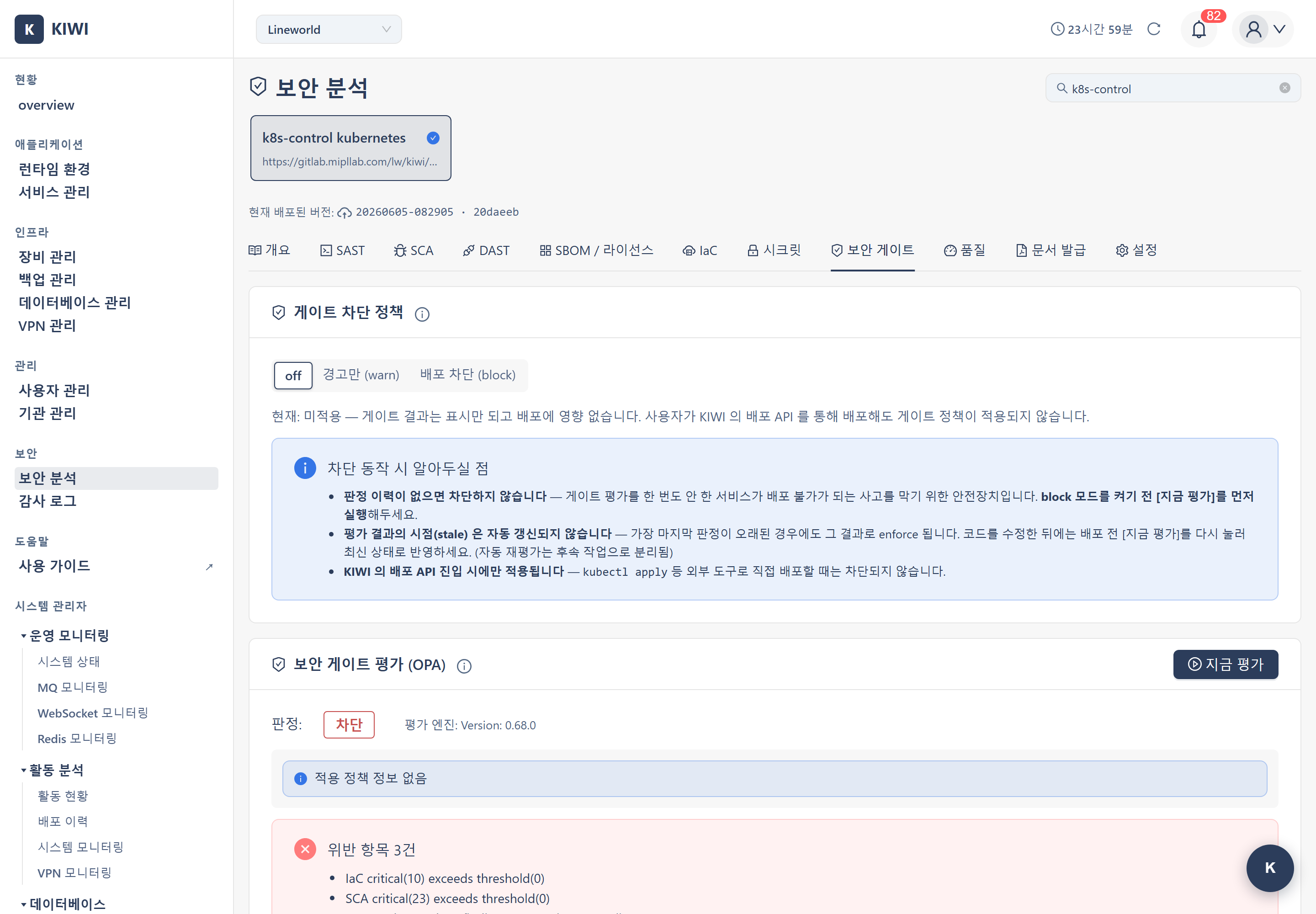
Overview
- Role: Combines the scan results of 6 security areas (SAST/SCA/DAST/IaC/Secret/License) against policy criteria to determine deployment readiness
- Policy verdict status: The gate is a deployment policy verdict, not a security area. After OPA evaluation it is excluded from the GS certification readiness formula.
- Verdict engine: OPA (Open Policy Agent)
- Verdict basis: OPA Rego policies (per-area severity thresholds)
- Result format: Pass/block verdict per area + overall gate pass status + (in warn mode) violation details
The Security Gate gathers the scan results already performed in each area, such as SAST/SCA/DAST/IaC/Secret, and evaluates them. The gate itself does not re-analyze code, so you must perform the scans of the areas to be evaluated before running the gate.
What Is OPA?
OPA (Open Policy Agent) is a general-purpose policy engine that defines and evaluates policy as code. With a policy language called Rego, it defines rules for "which conditions pass and which conditions block".
KIOPS's Security Gate uses OPA Rego policies to evaluate whether the scan results of each security area meet the policy thresholds. For example, a rule like "block if there is even one Critical vulnerability" is expressed as a policy.
Step 1: Entering the Security Gate
- Click the [Security Analysis] menu under the "Security" group in the sidebar.
- Select a service to evaluate from the card carousel at the top of the page.
- Select the Security Gate tab.
Entering /security?id={serviceId}&area=gate opens the Security Gate tab for that service directly.
Step 1-1: Configuring the Block Policy (Optional)
Separately from running the evaluation, the Security Gate lets you configure a block policy (gate_enforce_mode) that controls whether the gate verdict is actually enforced at deploy time.
In the gate tab or the [Service Management] page, choose one of:
- No enforcement (off): The gate evaluation runs but does not affect deployment.
- Warn only (warn): Even if the gate verdict is block, deployment proceeds and the violation details are shown to the user as a toast notification.
- Block deployment (block): If the gate verdict is block, the deploy API rejects the request with HTTP 412 Precondition Failed.
Each mode is shown in the UI via GateEnforcementBadge, so users can see at a glance whether the policy is active on the dashboard and Service Management pages.
Step 2: Running the Gate Evaluation
When you click the [Evaluate Now] button in the Security Gate tab, OPA compares the latest scan results of the 6 areas against the policies and produces a verdict.
The 6 areas subject to evaluation are as follows. License data is sourced from the SBOM scan (license_analysis), but in the gate, License is evaluated as its own separate area. The SBOM component inventory itself is not currently evaluated by the gate policy.
- SAST (static source code analysis)
- SCA (dependency vulnerabilities)
- DAST (runtime vulnerabilities)
- License (license risk sourced from the SBOM scan)
- IaC (infrastructure misconfigurations)
- Secret (exposed credentials)
If an area has no scan results, that area is excluded from evaluation or marked as not evaluable.
Step 3: Reviewing the Verdict
3.1 Verdict Result
After OPA evaluation, one of the following verdicts is shown.
- Allow: All areas satisfy the policy.
- Block: One or more areas' results exceed the policy thresholds.
- Warn: Shown when the warn block policy is active and the verdict is block. Deployment proceeds as-is, but the violation details are delivered to the user.
3.2 Per-Area Block Reasons
On a block verdict, which vulnerability in which area is the problem is shown in card form. Each card includes:
- Area name: SAST, SCA, License, etc.
- Problem items: Critical/High vulnerabilities or license risk counts
- Remediation guidance: How to address the issue to pass
3.3 Checking the Policy Basis
In the [Policy Basis] section you can review the applied OPA policy and severity_thresholds. If you have policy management permission, you can also edit the policy.
3.4 Warn Mode Violation Notification
When the warn block policy is active and the gate verdict is block:
- Deployment proceeds as-is.
- A gate_warning object is included at the root level of the deploy response (decision_id, decision (always 'block'), violations array, hint message).
- The frontend maybeShowGateWarning helper automatically detects the response and shows an 8-second toast via AntD notification.warning.
- Notifications for the same decision_id are never shown again (permanent dedup by Set+LRU mechanism maintaining up to 100 decision history). Even if the same decision repeats, the notification is shown only on the first occurrence; when decisions exceed 100, the oldest is removed via LRU (time-independent).
Gate Verdict Criteria
The Security Gate produces verdicts by defining per-area severity thresholds as policy (OPA Rego).
Evaluation Criteria of the 6 Areas
The OPA Rego policy defines rules for each area. In general:
- SAST, SCA, DAST, IaC, Secret: Block if the number of Critical/High vulnerabilities exceeds the threshold
- License: Block if the number of strong_copyleft licenses (Critical level) or weak_copyleft (High level) exceeds the threshold
If even one area exceeds its threshold, the overall gate verdict is block.
Separation from GS Certification Readiness
The gate verdict (block/allow) is a deployment policy result and is excluded from the GS certification readiness (0-100%) formula. GS uses only the threats of the 6 areas as deduction criteria:
- -5 points per Critical
- -1.5 points per High
- -0.5 point per Medium
- -2.5 points per unanalyzed (never) area
- Per-area cumulative penalty ceiling: Critical -30 / High -15 / Medium -10 (prevents one area's extreme values from dominating the whole)
- The gate block verdict is not included in the GS calculation
The result is clamped to the 0-100 range, and the more threats there are, the more intuitively the GS % drops.
When the gate is verdicted as block, go to the area that caused the block and:
- Fix the vulnerability, or
- Classify a confirmed false positive as false_positive, then
- Rescan that area, and
- Re-evaluate the gate.
If warn mode is active, even though deployment proceeds, it is recommended to review and address the violations in the [Security Analysis] tab.
Recommended Usage
Final Check Before Deployment
Before proceeding with a deployment, check the results of all 6 areas at once with the Security Gate. Without checking each area individually, you can quickly grasp deployment safety from the gate's allow/block verdict. If the warn block policy is active, violation details are included in the deploy response so users are immediately aware.
Run Area Scans First
Since the gate combines existing scan results, you should keep the scans of the areas to be evaluated up to date for an accurate verdict. If code or images change, rescan the relevant areas before evaluating the gate.
Regular Checks
New CVEs are constantly discovered. Even without code changes, periodically rescanning areas and re-evaluating the gate ensures you do not miss risks that emerge over time.
Troubleshooting
Many "Not Evaluable" Verdicts
If the areas to be evaluated have no scan history, they are shown as not evaluable. Perform the scans of the 6 areas, such as SAST, SCA, DAST, License, IaC, and Secret, before evaluating the gate.
The Gate Keeps Blocking
Check the block cause details for which item in which area exceeded a threshold. Fix the vulnerability or classify false positives in that area's result tab, then rescan and re-evaluate the gate.
Related Guides
- SAST Scan - Static source code analysis
- SCA Scan - Dependency vulnerability analysis
- DAST Scan - Runtime vulnerability analysis
- IaC Scan - Infrastructure code misconfiguration analysis
- Secret Scan - Exposed credential detection