K8s RBAC Management
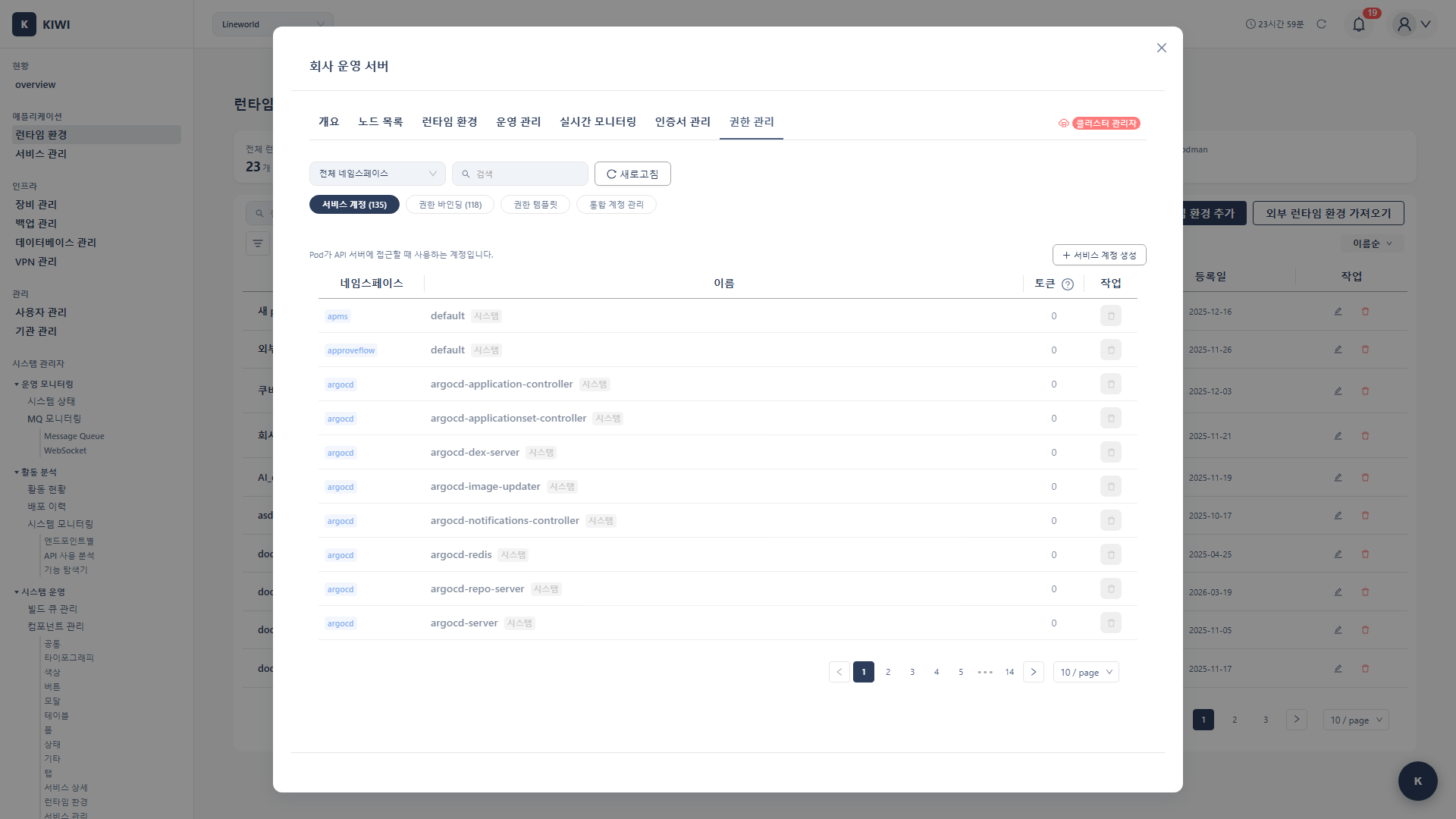
"Want the dev team to only access the dev namespace, and the ops team to only access the prod namespace?" KIOPS's RBAC management feature lets you finely control Kubernetes cluster access by team and role.
Giving all users full cluster access increases the risk of accidents causing outages. RBAC helps you grant "only the permissions needed to those who need them," improving security and stability.
What is RBAC?
RBAC (Role-Based Access Control) is how Kubernetes defines "who can do what." Think of it like a company's access card system. Just as each employee can only access their department and necessary spaces, RBAC ensures users can only access the resources they need.
KIOPS's RBAC Structure
KIOPS manages RBAC under [Runtime Environments] > select a Kubernetes cluster > Permission Management tab, which consists of the following 4 sub-tabs.
- Service Accounts (RBACManagementTab): Directly queries, creates, and deletes ServiceAccounts on the cluster. When a SA is created, it is created on the cluster immediately via SSH (there is no separate
createInClusterflag in this sub-tab). - Permission Bindings: Manages RoleBindings/ClusterRoleBindings for ServiceAccounts.
- Permission Templates: Provides permission templates mapped to default ClusterRoles such as cluster-admin / admin / editor / viewer.
- Unified Account Management (KiwiSAManagementTab, cluster-admin only): Manages the ServiceAccounts stored in the KIOPS DB along with namespace bindings, user assignments, and cluster synchronization. The SA creation modal in this sub-tab exposes the
createInClusterflag, which controls whether the SA is registered only in the KIOPS DB or also created on the cluster.
Permission Levels
The permission templates used in KIOPS map to Kubernetes default ClusterRoles.
- cluster-admin: All permissions across the entire cluster. Grant only to cluster administrators.
- admin: Can manage all resources within a namespace. Suitable for operations teams or administrators.
- editor: Can create/modify/delete resources but cannot change RBAC settings. Suitable for development teams.
- viewer: Read-only access. Suitable for monitoring or auditing.
For security, follow the "principle of least privilege." Granting users only the minimum permissions they need minimizes damage from mistakes or malicious actions.
Prerequisites
- A Kubernetes cluster must be registered in KIOPS
Permission Notice: If you cannot access this feature, please request permission from your organization manager.
Permission Management Tab (RBAC Management)
The Permission Management tab is located at [Runtime Environments] > select a Kubernetes cluster > Permission Management. It works directly with the cluster's ServiceAccount, RoleBinding, ClusterRole, and other RBAC resources.
Step 1: Navigate to the Permission Management Tab
- Click [Runtime Environments] in the left menu.
- Select the target Kubernetes cluster.
- Click the Permission Management tab on the cluster detail page.
Step 2: Create a Service Account
- In the Service Accounts sub-tab, click the Add button.
- Enter SA information:
- Name: ServiceAccount name (e.g.,
developer-sa) - Namespace: When the modal opens, the cluster's actual namespaces are queried over SSH and shown in a dropdown.
- Description: Purpose of the SA
- Name: ServiceAccount name (e.g.,
- Click the Create button — the ServiceAccount is created on the cluster immediately via SSH.
The Service Accounts sub-tab of the Permission Management tab does not expose a createInCluster flag; SAs are created directly on the cluster via SSH at creation time. The flow of registering an SA only in the KIOPS DB and syncing it to the cluster later is provided by the Unified Account Management sub-tab (below).
Step 3: Create RoleBindings From Permission Templates
The fastest way to create a permission binding is to start from the Permission Templates sub-tab.
- In the Permission Templates sub-tab, click a template card to use (cluster-admin / admin / editor / viewer).
- In the modal, select the ServiceAccount to bind.
- Choose the namespace or cluster scope to apply.
- Click Create — a RoleBinding (or ClusterRoleBinding) is created and the result is visible in the Permission Bindings sub-tab.
Step 4: System Resource Protection
- System ServiceAccounts (e.g.,
default,kube-*) and system namespaces (kube-system,kube-public, etc.) are protected against deletion. - If you attempt to delete them, the UI shows a warning and the operation is blocked.
Unified Account Management Tab (cluster admin only)
The Unified Account Management tab is a separate screen accessible only to cluster admins. It manages the relationship between SAs in the KIOPS DB and KIOPS users.
Step 1: Navigate to the Unified Account Management Tab
- From [Runtime Environments] > select a Kubernetes cluster > Permission Management, click the Unified Account Management sub-tab.
- Users without cluster-admin permission do not see this sub-tab.
createInClusterflag in the Unified Account Management sub-tab: In this sub-tab's SA creation modal, enablingcreateInClusterregisters the SA in the KIOPS DB and creates the ServiceAccount on the cluster immediately; disabling it registers the SA in the KIOPS DB only, to be synced to the cluster later.
Step 2: Assign SA to User
- Search for the user to assign.
- Click the Assign SA button on the user row.
- Select the ServiceAccount to assign.
- Set the Expiration Date (expiresAt). The assignment is automatically revoked when the date passes.
- Click the Assign button.
Step 3: Sync to Cluster
- When user assignments change, the cluster-side tokens/bindings must be synced.
- Click the Sync to Cluster button — KIOPS applies the changes to the cluster over SSH.
SA and Binding Management
Modify ServiceAccount
- Click the target SA in the SA list.
- Click the Edit button to modify the description or bindings.
- Click Save to apply.
Remove Namespace Binding
- Open the SA details and review the binding list.
- Click the Delete button next to the binding to remove.
Unassign User SA
- Find the target user in the Unified Account Management tab.
- Click the Unassign button.
- Click Unassign in the confirmation dialog.
Delete ServiceAccount
- Select the target SA in the SA list and click the Delete button.
- If the SA has been synced to the cluster, two options are presented:
- Delete in DB Only: Removes the SA only from the KIOPS DB; the cluster ServiceAccount is left intact.
- Delete in Cluster Too: Removes the ServiceAccount from both the KIOPS DB and the cluster.
- Choose the appropriate option and click Delete.
Deleting an SA immediately removes access for users assigned to that SA.
Check My K8s Permissions (Estimated)
Estimated: The menu location below may vary by KIOPS UI version.
Users are expected to be able to check their assigned K8s permissions. For the exact menu location, please ask your operations team.
Information likely to be displayed:
- Cluster: List of accessible K8s clusters.
- ServiceAccount: ServiceAccount name assigned in each cluster.
- Namespaces: List of namespaces accessible through the SA.
- Role: Permission level for each namespace.
Practical Use Scenarios
Scenario 1: Grant Namespace Access to Development Team
Situation: Grant edit permission for the dev namespace to 3 development team members.
Steps:
- In the Service Accounts sub-tab of the Permission Management tab, create SA
dev-team-sa(created on the cluster immediately via SSH). - In the Permission Templates sub-tab, click the
editorcard → selectdev-team-sa→ apply to thedevnamespace. - In the Unified Account Management sub-tab, assign
dev-team-sato 3 development team users (set expiration dates).
Scenario 2: Operations Team Multi-Namespace Management
Situation: Grant management permissions for prod and staging namespaces to the operations team.
Steps:
- In the Service Accounts sub-tab of the Permission Management tab, create SA
ops-team-sa(created on the cluster immediately via SSH). - In the Permission Templates sub-tab, click the
admincard → selectops-team-sa→ apply toprod. - In the Permission Templates sub-tab, click the
admincard → selectops-team-sa→ apply tostaging. - In the Unified Account Management sub-tab, assign
ops-team-sato operations team users.
Troubleshooting
SA Sync Failure
- When permission error occurs: The ServiceAccount used by KIOPS lacks permissions to create RBAC resources. Request ClusterRole and RoleBinding creation permissions from the cluster administrator.
- When namespace not found: The namespace you're trying to bind doesn't exist in the cluster. Create the namespace first and try again.
- When connection failure occurs: There's a network connection issue with the cluster. Check the cluster connection status on the Runtime Environment page and reconnect if necessary.
User Cannot Access Resources
- Cause 1: SA not assigned → Verify the SA assignment in the Unified Account Management tab.
- Cause 2: Expiration date passed → Renew the expiration or reassign.
- Cause 3: Cluster not synced → Click the Sync button.
Security Recommendations
Security best practices for operating RBAC safely.
RBAC configuration isn't a one-time setup. Review and update it regularly.
-
Principle of Least Privilege: Grant users only the minimum permissions they need. Don't give extra permissions "just in case."
-
Regular Review: Review SA assignments and bindings quarterly. Clean up permissions that are no longer needed due to departures or project completions.
-
Use Expiration Dates: When assigning SAs to users, set expiration dates whenever possible so that permissions are automatically revoked.
-
Audit Log Review: Regularly check RBAC changes. Monitor for any abnormal modifications.
-
Namespace Separation: Separating namespaces by environment (dev, staging, prod) minimizes the impact of mistakes.
Related Guides
- Runtime Environment Registration - Register K8s cluster.
- Permission Management - KIOPS permission system.
- User Management - User and role management.